|
<< Click to Display Table of Contents >> Display Overview |


|
Display Overview
|
<< Click to Display Table of Contents >> Display Overview |
|
To open the Basic Entry Window, select the New menu from the NinjaTrader Control Center. Then left mouse click on the menu item Basic Entry.
The image below shows each of the four sections in the Basic Entry window
1. Order Grid
2. Position and Level 1 (current inside market) display
3. Action Buttons
4. Order entry and ATM Strategy management
Note: Positions and orders will only display for the selected Account and Instrument. |
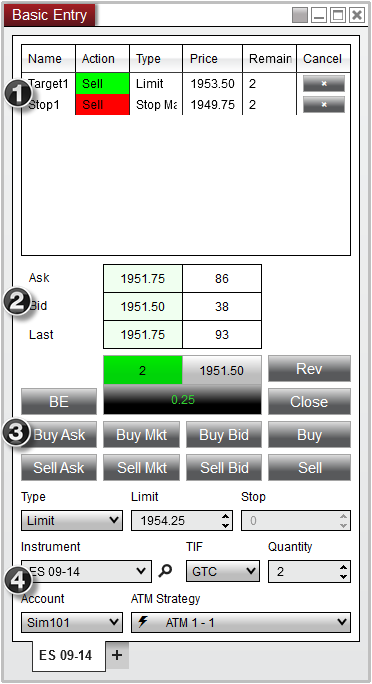
Please see the sections below for more information on each on: Order Grid, Market Display, Action Buttons, and Order Control.
 Understanding the order grid section
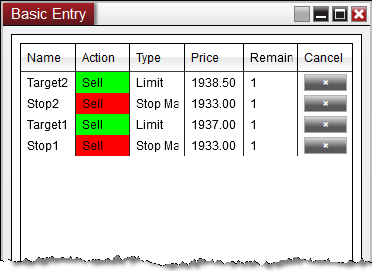
Order Grid DisplayThe Order Grid displays active orders for the account and instrument selected in the Basic Entry window.
Column Definitions
|
Understanding the market display section
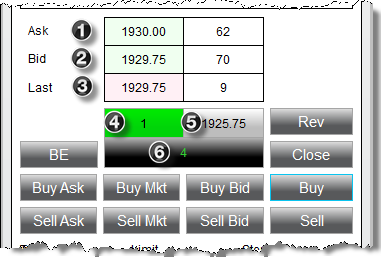
Market Data DisplayThe market display section of the Basic Entry window is used to display market prices and position information. The market price displays will change colors when an uptick or a downtick has been detected.
1. Current best ask price and size 2. Current best bid price and size 3. Last traded price and size 4. Market position (FLAT or green background with position size for long, red background for short) 5. Position average entry price 6. Unrealized profit or loss for current position (Clicking on this cell with your left mouse button will change the display between points, ticks, currency, percent, and pips)
|
Understanding the action buttons section
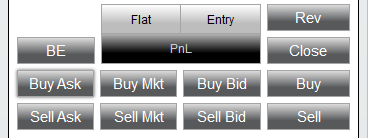
Action ButtonsThe Basic Entry has several buttons which are used to invoke a number of order related actions.
Please see the Submitting Orders section for more information on using these buttons. |
Understanding the order control section
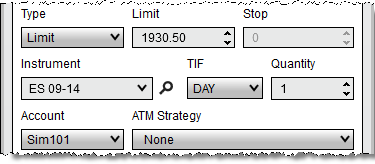
Order ControlsThe Order Control section of the Basic Entry is used to specify several attributes for a pending order to be submitted. |
Type |
Selects the order Type to be submitted |
Limit |
Sets the order Limit price |
Stop |
Sets the order Stop Price |
Instrument |
Sets the Instrument |
TIF |
Sets the order Time in Force |
Quantity |
Sets the order Quantity |
Account |
Sets the Account |
ATM Strategy |
Selects the ATM Strategy |
Understanding the right click menu
The Basic Entry window has two right click menus, depending on where you click:
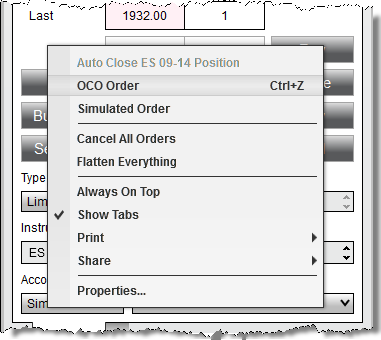
•Right clicking on the Basic Entry window itself will bring up menu items specific to the Basic Entry •Right clicking in the Order Grid will bring up menu items specific to orders Basic Entry Control Right Click MenuRight clicking on the Basic Entry window itself will bring up a number of menu items specific to the Basic Entry |
Auto Close Position |
Automatically Closes the current instruments position at a specified time |
OCO Order |
Enables/Disables the OCO (one cancels other) function for a pending order |
Simulated Order |
Enables/Disables the Simulated Order functionality for a pending order |
Cancel All Orders |
Cancels all active orders on the current account |
Flatten Everything |
Closes all open positions and cancels all open orders on every account associated with NinjaTrader |
Always On Top |
Sets if the window should be always on top of other windows |
Show Tabs |
Sets if the window should allow for tabs |
Displays Print options |
|
Share |
Select to share via your share connections |
Properties |
Configure the Basic Entry window properties |
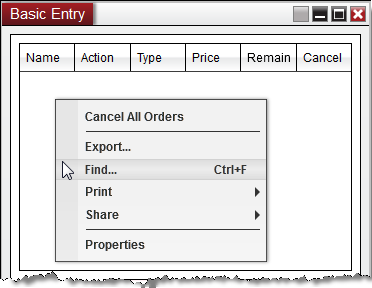
Cancel All Orders |
Cancels all active orders on the current account |
Export... |
Exports the grid contents to "CSV" or "Excel" file format |
Find... |
Search for a term in the grid |
Displays Print options |
|
Share |
Select to share via your share connections |
Properties |
Configure the Basic Entry window properties |
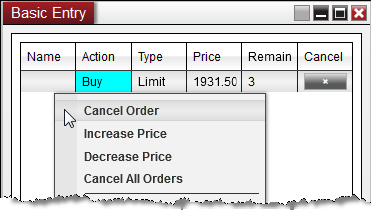
Cancel order |
Cancels the individual order selected |
Increase Price |
Changes the price of the order +1 tick |
Decrease Price |
Changes the price of the order -1 tick |
Cancel All Orders |
Cancels all active orders on the current account |