|
<< Click to Display Table of Contents >> Using the Level II Window |


|
Using the Level II Window
|
<< Click to Display Table of Contents >> Using the Level II Window |
|
There are multiple ways to select an Instrument in the Level II window.
•Right clicking on the Level II window and selecting the menu Instruments. •With the Level II window selected begin typing the instrument symbol directly on the keyboard. Typing will trigger the Overlay Instrument Selector.
For more Information on instrument selection and management please see Instruments section of the Help Guide. |
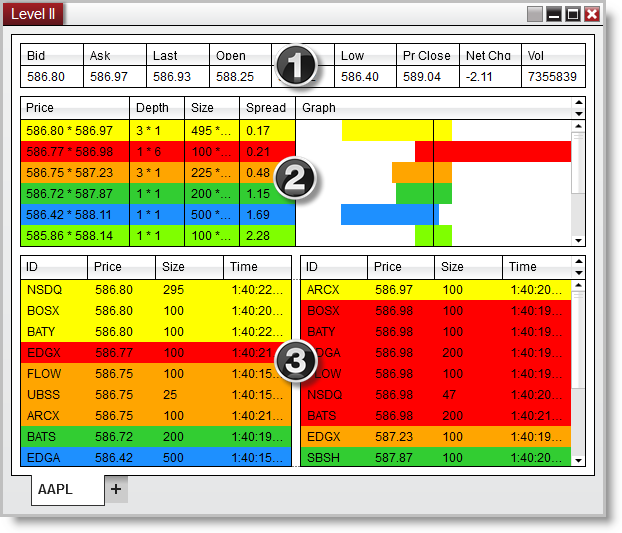
 Understanding the layout of the Level II window
You can disable the Quotes section by clicking on your right mouse button and deselecting the menu item Show Quotes.
|
Price |
The bid price by ask price |
Depth |
Number of market participants on the bid by ask price |
Size |
The total number of shares/contracts on the bid by ask price |
Spread |
The spread between the bid and ask price |
Graph |
Visual display of either Size or Depth (number of market participants) |
You can disable the Summary section by clicking on your right mouse button and selecting the menu Show Summary.
 Details
The Details section displays bid data on the left and ask data on the right.
ID |
The Market Maker or ECN identification |
Price |
The bid or ask price |
Size |
The number of shares/contracts at that price level available for buy or sell by the specific Market Maker or ECN |
Time |
The last time the bid/ask was refreshed by the Market Maker or ECN |
You can disable the Details section by clicking on your right mouse button and de-selecting the menu item Show Details.
Right mouse click on the Level II window to access the right click menu.
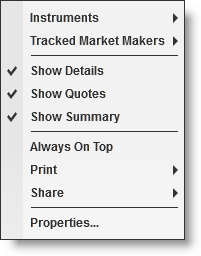
Instruments |
Selects the instrument |
Tracked Market Makers |
Selects Market Maker ID's to be tracked |
Show Details |
Sets if the details section is displayed |
Show Quotes |
Sets if the quotes section is displayed |
Show Summary |
Sets if the summary section is displayed |
Always On Top |
Sets if the window should be always on top of other windows |
Displays Print options |
|
Share |
Displays Share options |
Properties... |
Sets the Level II properties |
The Level II window is a tabbed interface, this gives you the ability to have multiple Level II tabs configured in the same window. Please see the Using Tabs section of the help guide for more information. |