|
<< Click to Display Table of Contents >> Modifying and Cancelling Orders |


|
Modifying and Cancelling Orders
|
<< Click to Display Table of Contents >> Modifying and Cancelling Orders |
|
You can modify an existing order's quantity, price, or cancel an order entirely from Order Grid display of the FX Board window.
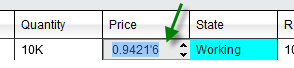
Changing the Price of an Order1.You can increase the price of an order in tenth-pip increments by right mouse clicking on the order in the Order Grid and selecting "Increase Price". 2.You can decrease the price of an order in tenth-pip increments by right mouse clicking on the order in the Order Grid and selecting "Decrease Price". 3. Double clicking in the price field will enable the price editor which will allow you to type in a new price manually, or use the scroll wheel on your mouse to select a relative price. |
Tip: Hold down the CTRL key when scrolling in the price editor to change the price in steps of half-pip increments. |
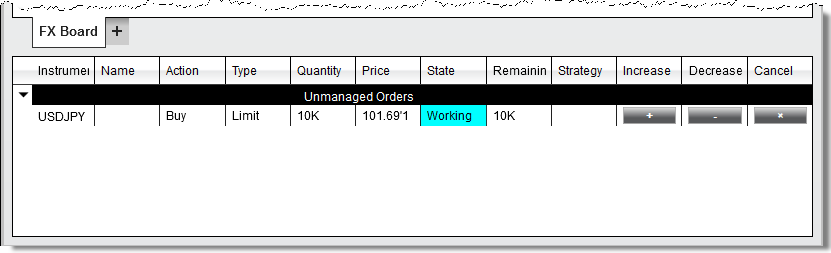
Tips:1.Holding the CTRL key down while pressing the "+" or "-" button will modify the order by half-pip increments 2.Holding the ALT key down while pressing the "+" or "-" button will modify the order by one pip increments |
Tip: Holding down the CTRL key and scrolling will change the FX order size by 100K (100,000) |
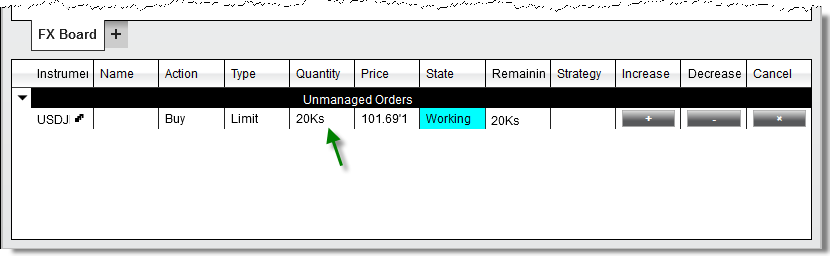
Note: Changing the quantity of an existing order will submit a new order the same price to preserve your place in queue. Your orders will now show up as "stacked" indicated by the small letter "s" next to the order. |
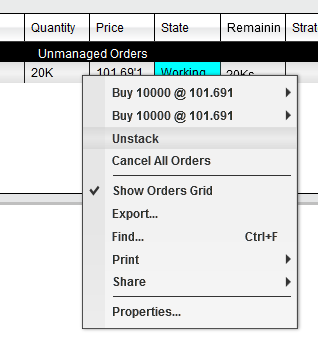
Cancelling an Individual Order1. You can cancel an order by left mouse clicking on the "X" button. 2. You can also right click on the order itself and press the "Cancel Order" menu item
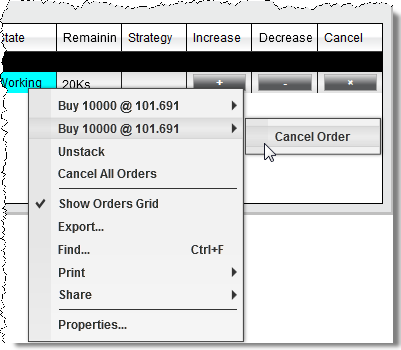
Cancelling Stacked OrdersIf you have stacked orders, indicated by the small letter "s" in the Quantity column, you can cancel one of the orders, and leave the other(s) remaining using the steps below:
1. Right click on the stacked order row 2. Move your mouse over the order individual order 3. Select "Cancel Order"
|