|
<< Click to Display Table of Contents >> Using the FX Correlation Window |


|
Using the FX Correlation Window
|
<< Click to Display Table of Contents >> Using the FX Correlation Window |
|
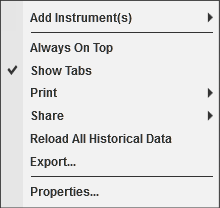
There are multiple ways to select a Forex Instrument in the FX Correlation Chart window.
•Right clicking on the FX Correlation window and selecting the menu Add Instrument(s). •With the FX Correltion window selected begin typing the instrument symbol directly on the keyboard. Typing will trigger the Overlay Instrument Selector.
For more Information on instrument selection and management please see Instruments section of the Help Guide. |
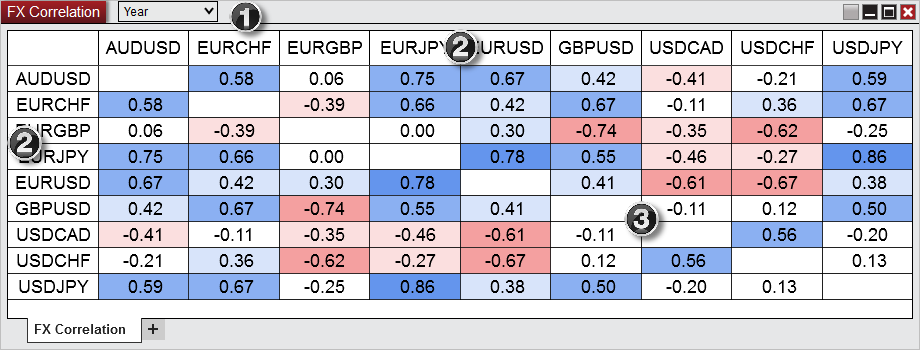
 Understanding the layout of the FX Correlation window
|
Add Instruments |
Selects the Forex instrument to add |
Always On Top |
Sets if the window should be always on top of other windows |
Show Tabs |
Sets if the window will allow for tab support |
Displays Print options |
|
Share |
Displays Share options |
Reload All Historical Data |
Reloads the historical bar data used for Indicator calculations |
Export... |
Exports the FX Correlaion contents to "CSV" or "Excel" file format |
Properties... |
Sets the FX Correlation Properties |
The FX Correlation Chart window is a tabbed interface, this gives you the ability to have multiple FX Correlation Chart tabs configured in the same window. Please see the Using Tabs section of the help guide for more information. |