|
<< Click to Display Table of Contents >> Workspaces Menu |


|
Workspaces Menu
|
<< Click to Display Table of Contents >> Workspaces Menu |
|
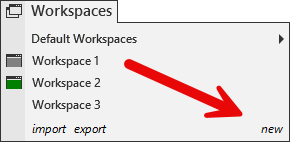
The following menus and items are available via the Workspaces menu of the NinjaTrader Control Center.
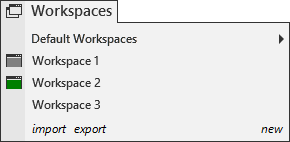
•A workspace named "Untitled1" will load automatically
•You can have multiple workspaces open simultaneously
•Open workspaces are indicated by the rectangle icon, if there is no icon then the workspace is closed
•The currently active workspace has a filled green rectangle. You can only have one active workspace
•You can toggle the currently displayed workspace by selecting the workspace you wish to display from the Workspaces menu or using the Hot Key SHIFT + F3
•On application shut down you will be given the opportunity to save changes in all open workspaces
Create a Workspace |
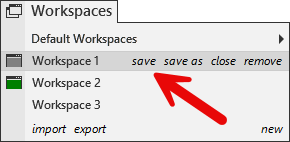
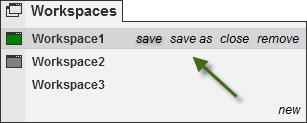
Save a Workspace |
Open a Workspace |
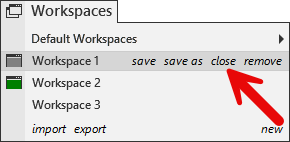
Close a Workspace |
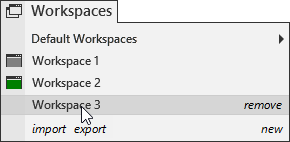
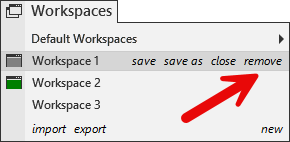
Remove a Workspace |
Note: Removing a workspace will also remove previous versions from the restore utility. However, it will not remove it from backups |
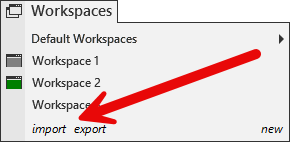
 How to import or export workspaces
Importing Workspaces1.From the NinjaTrader Control Center select the menu Workspaces 2.Select import 3.Select the workspace file from your computer to import
Export Workspaces1.From the NinjaTrader Control Center select the menu Workspaces 2.Select export 3.Check the workspaces you want to export 4.Select Export 5.Set a file name 6.Press Save
|
How to quickly switch between workspaces
Quickly Switching Between WorkspacesPressing SHIFT+F3 keys together will cycle to the next open workspace. |
Restore a Prior Version of WorkspacesIf you need to restore a previously saved version of a saved workpspace, you can do this within the Control Center by going to Tools and selecting Database Management. In here you will see a Restore Workspace section to complete the recovery. See the Database Operations section.
By default 10 previously saved versions of your workspaces will be retained. To modify how many recovery versions are available within the Control Center go to Tools and select Options. Within the General section go to Preferences and set the Versions of recovery workspaces. See the Options General section.
If you are unable to recover a prior version, if a backup was done you can restore from a backup. See the Backup & Restore section. |