NinjaTrader Chart Trader is a built-in order entry tool that lets you place and manage futures trades directly from your chart. Available on the NinjaTrader Desktop platform, it supports everything from simple market and limit orders to advanced automated trade management (ATM) strategies.
Chart trading offers unique benefits over using a traditional order bar or the NinjaTrader SuperDOM, including:
- Better visual alignment of orders with market data and indicators
- Less distraction from a fast-moving SuperDOM
- More efficient desktop workspace layouts
- Reduced order errors
Watch Now:
Enabling the Chart Trader
You can enable the NinjaTrader Chart Trader at any time by clicking on the Chart Trading icon in the chart toolbar. You can place orders and manage positions directly from the chart, allowing you to see orders and positions in context with the price action and your favorite technical indicators. (Figure 1)

Figure 1: Chart Trader Icon in the Charting Toolbar
Once you click on the icon, a dialog box will appear, giving you three choices: Chart Trader Off, Chart Trader, and Chart Trader Hidden.
Chart Trader Off: When this is selected, you will not be able to trade from the chart. This is handy for traders who prefer the NinjaTrader SuperDOM or Trade Ticket for order entry and management. Trades placed on the SuperDOM will not show up on the chart.
Chart Trader: This option enables you to trade from the chart and will open a quick-click trading panel on the right side of the chart with numerous options and features. Trades placed on the SuperDOM will now show up on the chart.
Chart Trader Hidden: This option also enables you to trade from the chart but will not open the right-hand trading panel. You can right-click the mouse button in the chart to open a pop-up menu with various order options.
| Mode | What it shows | When to use it |
|---|---|---|
| Off | No chart trading. Orders placed via SuperDOM or Trade Ticket do not appear on the chart. | When you prefer a dedicated order panel and do not want chart-based order placement. |
| Standard | Full side panel on the right of the chart with quick-click entry, position controls, ATM strategy selector, and account settings. | Default working mode. Best when you want fast one-click entry and full ATM control visible at all times. |
| Hidden | No side panel; chart trading is active via right-click context menu only. | When you want a clean, maximised chart view without sacrificing the ability to trade directly from it. |
Placing trades with chart trading
When NinjaTrader Chart Trader or Chart Trader Hidden are enabled, follow these steps to place a trade:
- Place the mouse cursor near your order price on the chart.
- Left-click on the chart. This brings up the right mouse button menu, which offers four order options: Buy Limit, Sell Limit, Buy Stop, or Sell Stop.
- Click on the required order, and the order will become active. (Figure 2)
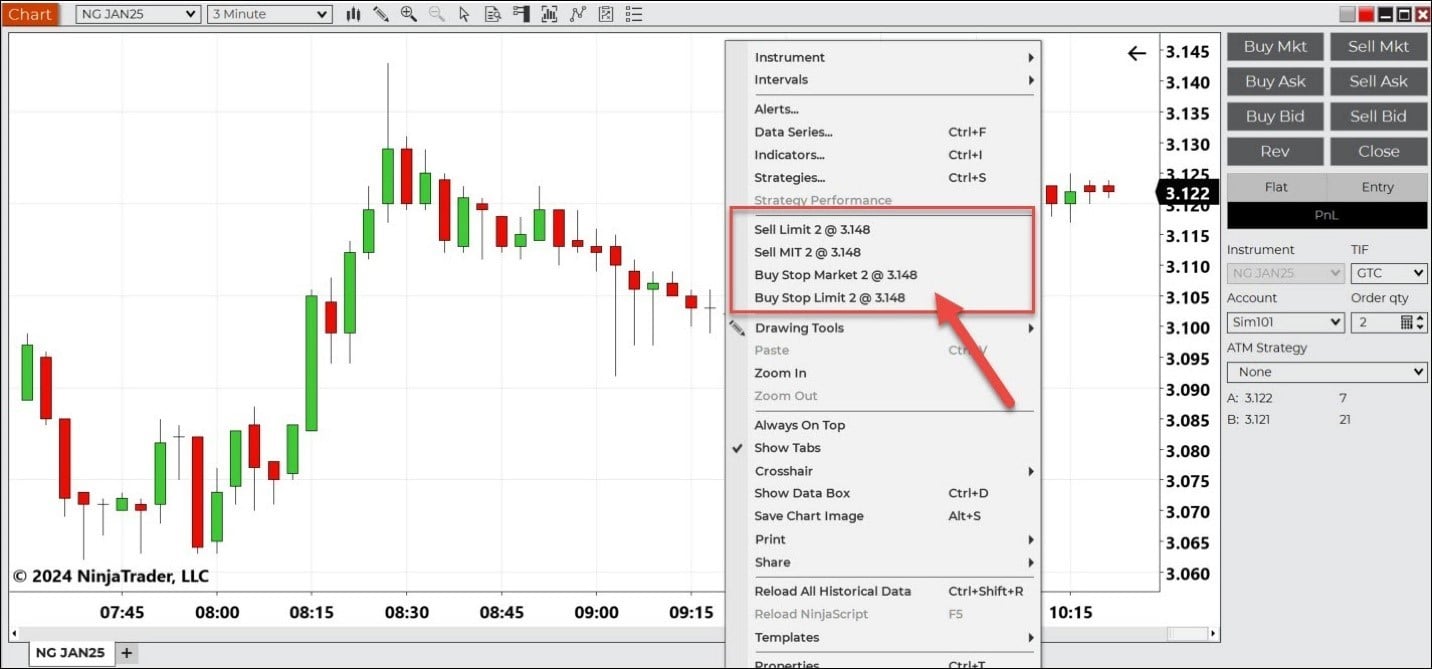
Figure 2: Chart Trading With Right Mouse Menu Order Options
You will now see an order flag and label; you can refine the order price by clicking and dragging the order to the new price. You can also change the order quantity by clicking on the quantity number in the flag. Click the X on the right to cancel the order.
This includes Eurex futures such as the FDXS Micro DAX, FDXM Mini-DAX, and FESX Euro Stoxx 50.
Why limit and stop orders should be placed above or below the market
Limit and stop orders function differently based on their purpose. A limit order is designed to execute at a specific price or better. For a buy limit order, the price must be below the current market price, as the trader is willing to buy only at that price or lower. Conversely, for a sell limit order, the price must be above the current market price, as the trader wants to sell only at that price or higher.
A stop order is used to trigger an entry or exit when the price moves to or through a certain level. A buy stop order is placed above the current market price to capture upward momentum, while a sell stop order is placed below the market to capture downward momentum. This distinction allows traders to position their orders strategically based on their expectations of price movement.
Chart Trader right-hand panel
The quick-click order panel on the right presents several single-click buttons to quickly enter or add to a position, close a position, and reverse a position. You can set the account to trade, order quantity, and time in force (TIF) (day order or good till cancel [GTC]). It also allows traders to attach and place ATM strategies, like OCO brackets as well as more advanced OCO orders with multitarget brackets and trailing stops.
In addition, there is a right mouse button menu that allows for quick-click order and position handling to cancel all orders and flatten all positions. (Figure 3)
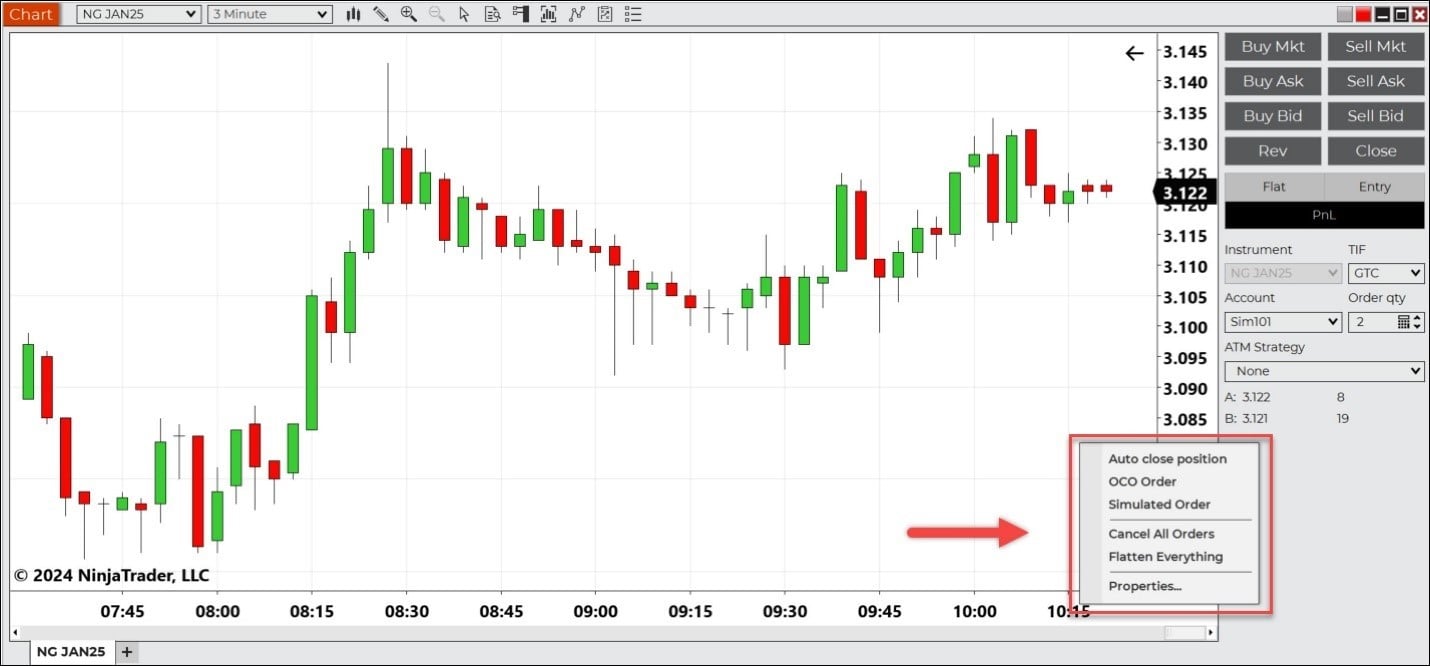
Figure 3: Chart Trading Quick-Click Panel and Right Mouse Button Menu
Chart trading with NinjaTrader provides a dynamic interactive trading environment with the ability to place, modify, and manage trades directly from the chart. Traders can seamlessly integrate market data and technical analysis in context with real-time order placement and position management. Whether you're a seasoned trader or just starting out, the Chart Trader can help you discover the full potential of the NinjaTrader platform.
FAQs on NinjaTrader Chart Trader
Yes. NinjaTrader Chart Trader works across all markets available on the platform, including Eurex-listed contracts such as the FDXS Micro DAX, FDXM Mini-DAX, and FESX Euro Stoxx 50. Order placement, modification, and position management work identically for Eurex contracts as for any other futures market on the platform.
Chart Trader supports market, limit, stop-loss, trailing stop, market if touched, and one cancels other (OCO) orders, as well as advanced ATM strategies with multitarget brackets.
Yes. Selecting Chart Trader Hidden removes the right-hand panel whilst keeping chart-based order entry active via the right-click context menu. This gives you a clean, maximised chart workspace without losing the ability to trade directly from it.
Trade futures with NinjaTrader
NinjaTrader is a MiFID II-compliant futures platform operated by PEDSL, regulated by CySEC (licence 342/17). Haven't signed up for your free NinjaTrader account yet? Get started today with a 14-day trial of live simulated futures trading.
Get Started TodayRisk disclosure
Futures trading involves substantial risk of loss and is not suitable for all investors. An investor may lose all or more than the initial investment. Trading should be undertaken only with risk capital—funds that can be lost without jeopardising one's financial security or lifestyle—and only by those who can afford such losses. Past performance is not necessarily indicative of future results. PEDSL is authorised and regulated by the Cyprus Securities and Exchange Commission (CySEC) under licence number 342/17. This material is provided for informational purposes only and does not constitute investment advice or a solicitation to buy or sell any financial instrument. CFD trading is available subject to applicable restrictions under BaFin and MiFID II regulations.