The NinjaTrader Market Analyzer is a real-time quote board built into the NinjaTrader Desktop platform that lets futures traders track dozens of live market metrics—including DAX, Euro Stoxx 50, and US index futures—from a single customisable window. NinjaTrader EU is authorised and regulated under MiFID II, giving EU traders access to the same powerful platform tools with full regulatory protection.
The Market Analyzer window within NinjaTrader Desktop is a powerful real-time quote board active traders use to:
- Monitor real-time price action
- Sort and rank instruments (markets) by your own custom criteria including technical indicators
- Set alerts based on market activity triggers
Ready to set up and personalise your Market Analyzer window? Watch a guided tour with actionable tips to get started:
Using the Market Analyzer window to track futures market activity
Using NinjaTrader's Market Analyzer, EU traders can monitor nearly 60 built-in data columns—including price, daily volume, net change, and technical indicator values—for all instruments simultaneously in real time.
At a casual glance, the Market Analyzer looks like a simple quote board or watch list displaying basic bid/ask and last prices. However, the Market Analyzer is an essential tool that allows traders to track dozens of key real-time market metrics and technical indicator values for all markets. (Figure 1)
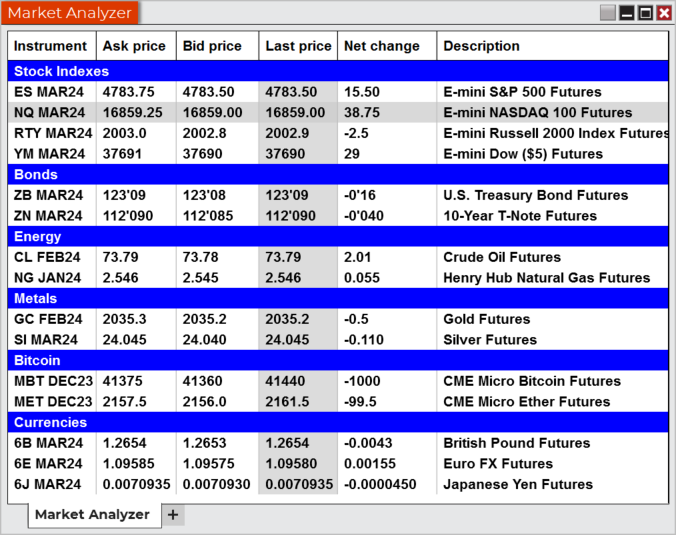
This includes popular European benchmark contracts such as FDAX (DAX futures), FDXS (Micro-DAX), FESX (Euro Stoxx 50), and FGBL (Euro-Bund) alongside global US index futures like the E-mini S&P 500 (ES), E-mini Nasdaq-100 (NQ), and Micro E-mini Nasdaq-100 (MNQ).
Using the right mouse button (RMB) menu
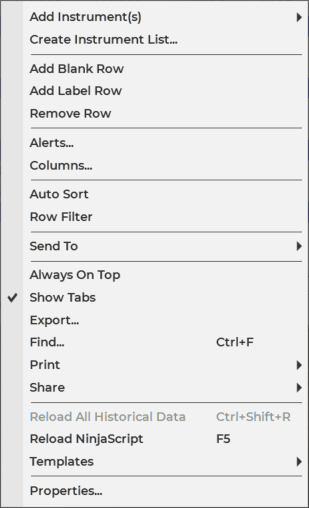
A simple right mouse click on the Market Analyzer will launch an extensive features menu that allows you to add instruments (markets), add additional data columns, set price alerts, and customise your look and feel. (Figure 2)
How to add instruments to your Market Analyzer window
To add instruments to the Market Analyzer, select the "Add Instrument(s)" option at the top of the RMB menu. You can choose from a list of popular preset markets and instrument lists grouped by asset class, or you can use the smart search feature to add markets. (Figure 3)
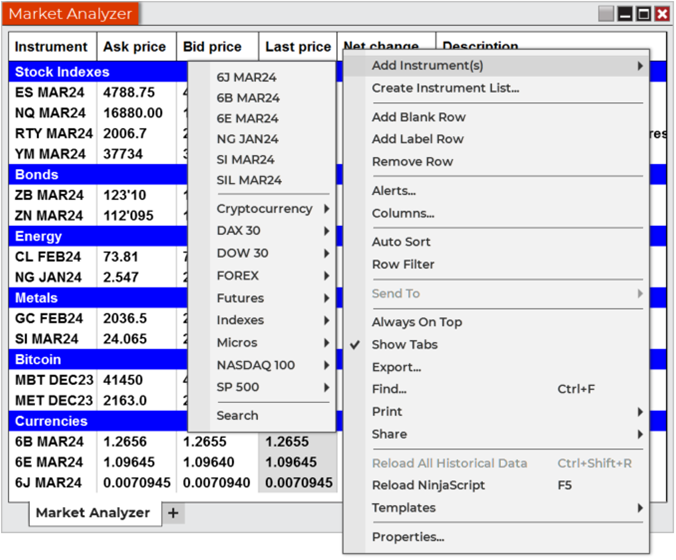
EU traders will find DAX futures (FDAX), Micro-DAX (FDXS), Euro Stoxx 50 (FESX), and Euro-Bund futures (FGBL) readily available alongside US instruments such as ES, NQ, MNQ, crude oil (CL), and gold (GC).
For further guidance on adding instruments, see our support article on Market Analyzer columns for NinjaTrader Desktop.
Find Markets Using the Smart Symbol Search
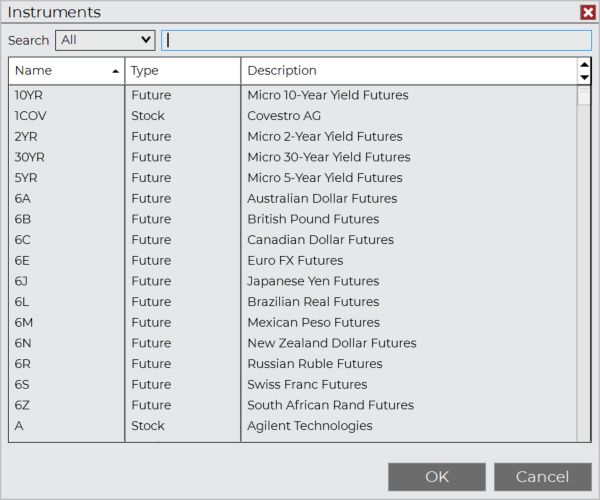
The smart search feature is both a keyword and symbol-based search tool. Even if you don't know the exact symbol for the market you want to add, just type in the symbol root or description (e.g., FDAX or DAX, GC or Gold, ES or S&P) and you'll find it. (Figure 4)
Add data columns and technical indicators
German futures traders can use NinjaTrader's Market Analyzer to add technical indicators like the Stochastic directly to the quote board and rank instruments by overbought or oversold conditions, without switching between chart windows.
Two of the most powerful features of the Market Analyzer are the ability to:
- Track real-time market data points most important to your trading
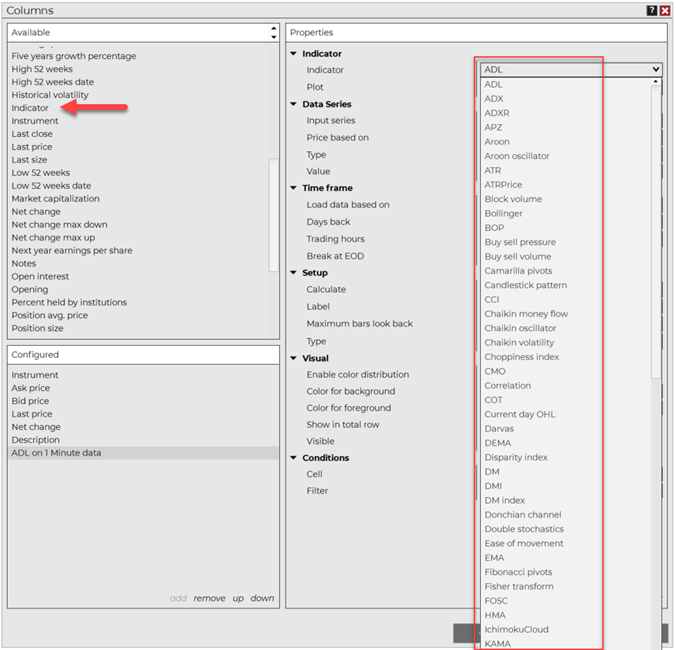
- Apply real-time technical indicators as a column, which allows you to follow your favourite indicators on a list of symbols
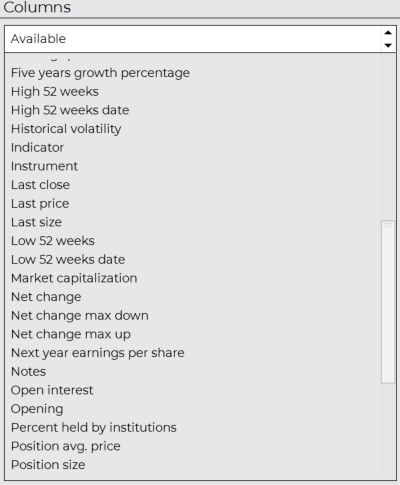
Traders can choose from nearly 60 different built-in columns including daily price metrics like the high and low, daily volume, and net change. (Figure 5)
For example, by adding the Stochastic indicator to the Market Analyzer window, you can sort and rank all the symbols in the window by those that are most overbought or oversold. (Figure 6)
Traders can also add columns to track their real-time open positions including average entry price, position size, and trading gains and losses.
Market Analyzer configured
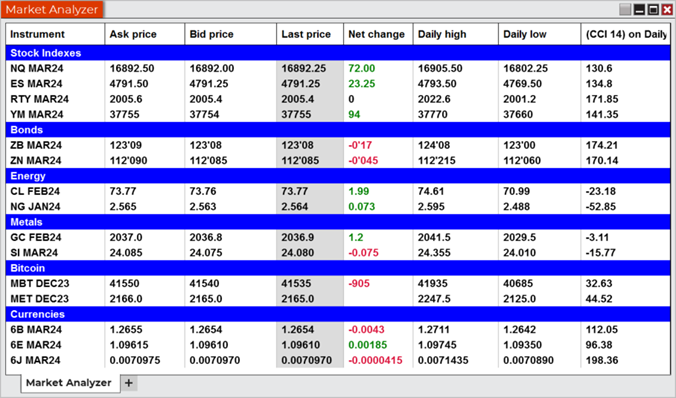
The Market Analyzer offers several essential formatting and configuration tools to help you better organise and visualise real-time market data. For example, you can easily add label rows to group symbols by similar products or complexes. The foreground and background colours can also be adjusted as needed to help direct your eyes to the most important data points. (Figure 7)
You can also save multiple configurations of the Market Analyzer window in templates, which allows you to quickly switch the look and feel of the Market Analyzer window based on different trading requirements.
Setting price alerts in the Market Analyzer
Price alerts in NinjaTrader's Market Analyzer can be set on any column with a right-click, allowing active futures traders to be notified when DAX, Euro-Bund, or US index contracts hit predefined price levels.
To set a price alert, right-click on any row or column in the Market Analyzer and select the alert option from the features menu. You can configure alerts based on any tracked data column, including custom technical indicators—making the Market Analyzer a powerful market scanner as well as a quote board.
For configuration details specific to NinjaTrader Web, see our support article on the Market Analyzer for NinjaTrader Web.
About NinjaTrader EUNinjaTrader EU is authorised and regulated under MiFID II, offering German and EU traders access to the same advanced platform tools—including the Market Analyzer—with full regulatory protection under BaFin oversight.
Discover how the Market Analyzer can transform your futures trading
If you're new to NinjaTrader, open a free account today to get started with NinjaTrader Desktop. All accounts include a free 14-day trial in our simulated trading environment with live futures market data. To learn more, explore our EU platform overview or visit our Introduction to Futures Trading guide. For deeper context, see how to trade futures or compare futures vs. CFDs and futures vs. stocks.
Risk reminderFutures trading involves substantial risk of loss and is not suitable for all investors. The Market Analyzer is an analysis and monitoring tool—it does not guarantee profits or eliminate the risk of loss. Always test new configurations and strategies in NinjaTrader's simulation environment before trading live. Past performance is not indicative of future results.
FAQs about using the NinjaTrader Market Analyzer
Open NinjaTrader Desktop and select Market Analyzer from the New menu in the Control Center. Right-click anywhere inside the window to access the features menu, where you can add instruments, add data columns, set alerts, and customise the display. See our EU support guide for step-by-step setup instructions.
You can track any futures instrument available through NinjaTrader, including European benchmark contracts such as FDAX (DAX futures), FDXS (Micro-DAX), FESX (Euro Stoxx 50), and FGBL (Euro-Bund), as well as US index and commodity futures. Use the smart symbol search to add any instrument to your quote board. For a full list of supported instruments, visit the EU platform overview.
Yes. Right-click the Market Analyzer, select Add Column, and choose from nearly 60 built-in columns including technical indicators such as the stochastic oscillator, simple moving average (SMA), exponential moving average (EMA), and more. Once added as a column, you can sort all instruments by that indicator's value in real time.
Right-click on any instrument row or data column in the Market Analyzer and select the alert option from the context menu. You can set price-triggered alerts on any tracked column, including custom indicators. Alerts can help you stay informed when FDAX, FGBL, ES, or any other tracked instrument reaches a pre-defined level.
Start trading today
Ready to put the Market Analyzer to work? Open a free NinjaTrader EU account and get immediate access to NinjaTrader Desktop with a free 14-day simulation trial on live futures market data.