The NinjaTrader Desktop Control Centre is the central hub of the NinjaTrader trading platform, giving traders direct access to workspaces, market data connections, and all trading tools from a single window. The NinjaTrader Desktop platform delivers a powerful set of futures trading and analysis tools that allow you to customise your trading layouts and workspaces to your unique trading style.
At the heart of the NinjaTrader Desktop platform is the Control Centre, where you can access all the features, functionality, and customisation you need to take your futures trading to the next level.
In NinjaTrader, a workspace is a saved layout of trading and analysis windows—including charts, quote boards, and order entry tools—that can span multiple monitors and be recalled instantly from the Control Centre.
Learn How to Navigate the NinjaTrader Desktop Control Center
How to Access the NinjaTrader Control Center
The NinjaTrader Control Centre opens automatically every time you log in to NinjaTrader Desktop.
Consider the Control Centre as your primary tool for navigating the platform’s tools and features. This introduction to the Control Centre outlines:
- How to monitor your real-time connection to data and trading.
- How to create and manage workspace layouts.
- How to access additional help resources.
What Is the Market Data Connection Indicator?
NinjaTrader’s Control Centre displays a real-time colour-coded connection indicator—green for connected, yellow for connecting, red or grey for no connection—so traders always know the live status of their market data feed.
At startup, the NinjaTrader Desktop platform immediately attempts to establish trading and market data connections. The Control Centre will reflect your connection status continually with a colour-coded circle displayed prominently in the lower left corner:
- Green = connected
- Yellow = trying to connect
- Red or grey = no connection

How to Access Workspace Layouts in the Control Center
The Control Centre is where you can access, create, and manage your workspaces.
German futures traders using NinjaTrader EU can access global markets including FDAX (DAX Index Futures) and FESX (Euro STOXX 50) through customisable workspace layouts built directly inside the NinjaTrader Desktop Control Centre.
Once connected, you’ll want to create a workspace layout to serve as your customised trading and analysis environment. Your layout can span one or more monitors and include charts, quote boards, order entry tools, and other mission-critical analytical and data windows. You can create and save multiple layouts to load when you open the trading platform.
For a full overview of workspaces in NinjaTrader Desktop, visit the Workspaces EU support article.

How to Add Windows to Your Workspace
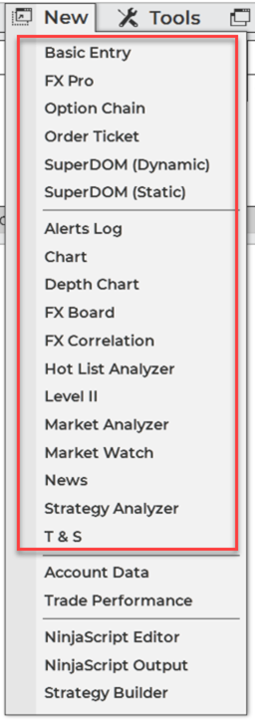
The New tab at the top of the Control Centre allows you to add any of the various trading and analysis windows to your workspace layout. For example, you can add multiple charts, Market Analyzers (quote boards), order entry tools like the SuperDOM, and other market data and trading tools from this tab.
How to Manage Your Workspace Layouts Through the Control Center
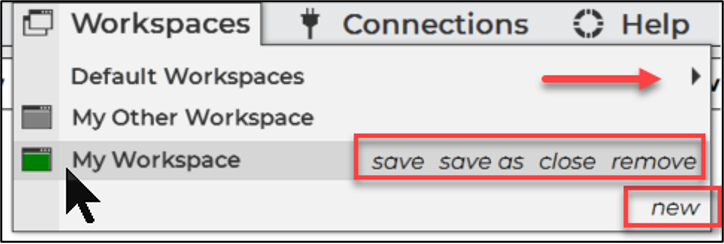
The Workspaces tab at the top of the Control Centre is where you can:
- Manage and organise your workspace layouts.
- Access preloaded default workspaces.
- Create a new workspace.
- Select the active workspace.
- Remove a workspace.
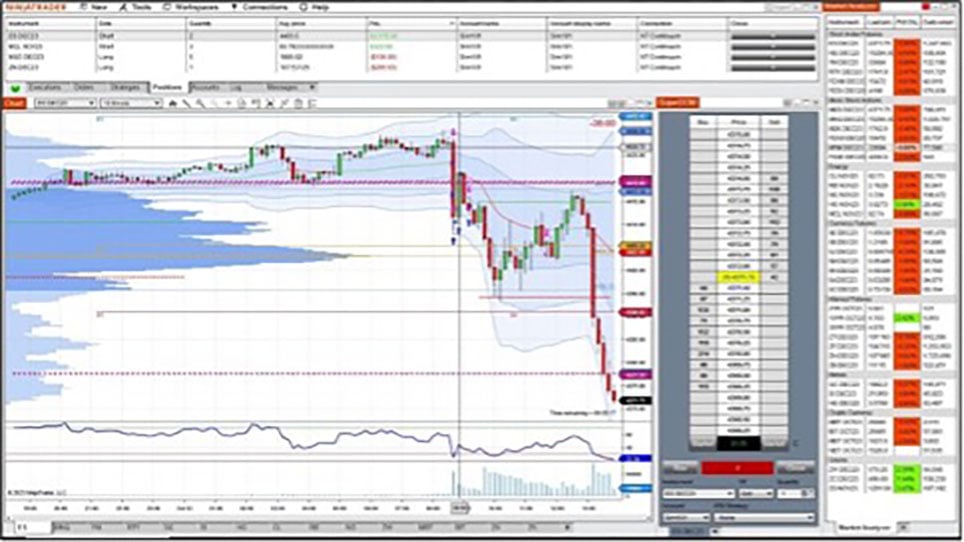
Here’s an example of a typical NinjaTrader workspace layout, with the Control Centre at the top, a historical price chart on the left, Market Analyzer on the right, and the SuperDOM order entry tool between the two (Figure 5). Keep in mind that there can only be one active workspace at a time, but you can easily switch between your saved workspace layouts from the Workspaces tab.
Access Help Resources in the Control Center
The Help tab is the right-most tab at the top of the Control Centre and provides direct links to educational resources for NinjaTrader platforms. NinjaTrader support is just a click away: access online help, explore video guides, and connect with our tech support for any additional questions you may have.
EU traders can access the full NinjaTrader Desktop Control Centre overview in the EU support portal, or visit NinjaTrader EU support for additional assistance.

Test Drive the Control Center on Your Own
NinjaTrader EU is operated by PEDSL-CY, regulated by CySEC (licence 342/17), and provides EU traders with the same award-winning desktop platform and Control Centre used by traders worldwide.
NinjaTrader is always free to use for advanced charting, backtesting, and simulated trading—EU traders can open an account and start using the Control Centre risk-free in a simulated environment before placing a single live trade.
If you’re new to NinjaTrader, open your free NinjaTrader EU account today to get started with our NinjaTrader Desktop platform. To learn more about the platform and pricing for EU traders, visit the NinjaTrader EU platform overview or explore EU pricing. You may also find the futures vs. CFDs comparison useful if you are considering your options.