We all know why different timeframes matter in trading, but do we know how to maximize their value? It’s about time we figure it out and put it into practice.
In this post, we’ll show you how to apply and adjust chart timeframes inside NinjaTrader, whether you’re a one-minute scalper or a swing trader working off hourly setups. We'll also cover how to combine multiple timeframes into one chart, plus a few more tips to keep things smooth and mistake-free.
So, if you’re ready to customize your charts, let’s get into it.
What are timeframes in NinjaTrader?
Timeframes tell your chart how to group and display price data. A one-minute chart shows a new bar every minute. A tick chart? That one updates after a set number of trades, regardless of time. NinjaTrader lets you choose from multiple chart types so you can analyze markets your way, not just the “default” way.
Want a refresher on NinjaTrader’s charting tools? Explore NinjaTrader’s charting features
Timeframes you can use in NinjaTrader
You’ve got options when it comes to how your chart builds candles or bars. Here’s a quick breakdown:
Time-based charts
- Minutes (like M1, M5, M15)
- Hours (like H1, H4)
- Daily or weekly
These are your standard go-to timeframes, great for general trend analysis and classic setups.
Activity-based charts
- Tick charts: Bars form after X number of trades
- Volume charts: Bars form after X number of contracts are traded
- Range charts: Bars form once price moves a set number of ticks
These are perfect when you want to focus on price movement and market activity, not just time on the clock.
Want a deeper dive into all your chart options? Check out our Price Data Help Guide.
How to change timeframes in NinjaTrader
Ready to switch things up? Here’s how to apply a new timeframe to any chart:
- Right-click on your chart and select Data Series.
- Look for the Type dropdown; it’s where you choose Minute, Tick, Range, etc.
- Set the Value; like 1 for a one-minute chart, or 500 for a 500-tick chart.
- Click OK, and your chart updates instantly.
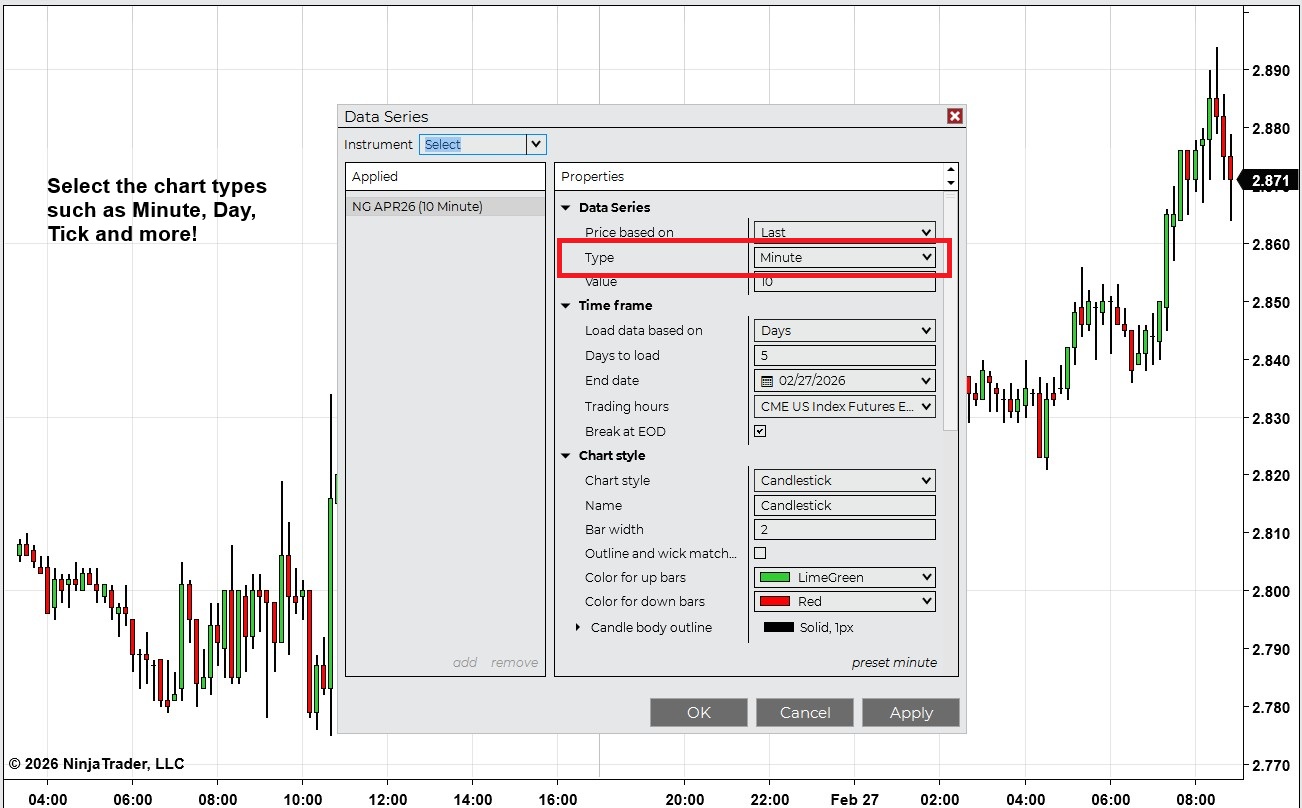 Figure 1: Select the time period of the chart in the Series field (Minute, Day, Week or Month)
 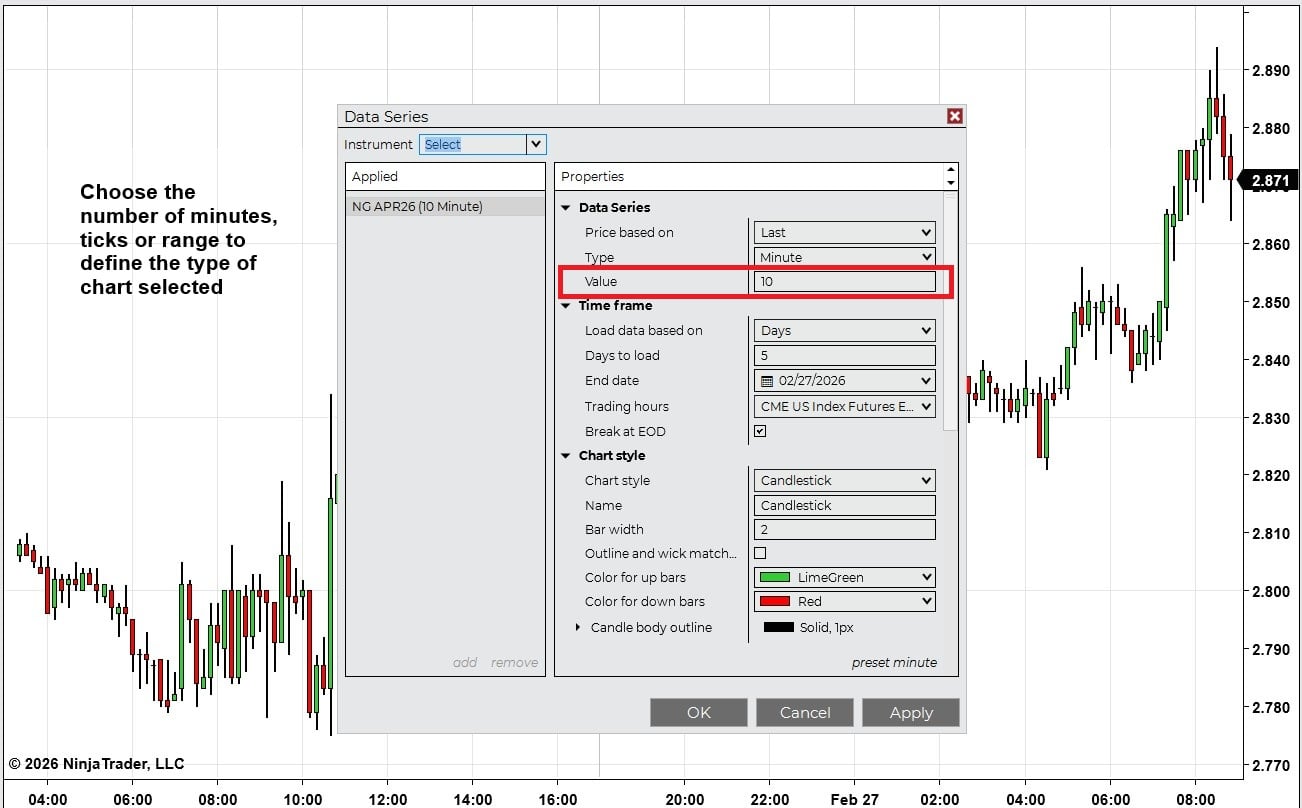 Figure 2: Enter the number of units in the Value field
That’s it! You’re now trading on your terms.
Need a more detailed walkthrough? See our Charts Overview.
How to add multiple timeframes to one chart
Looking to keep things tight and tidy with a multi-timeframe chart? Here’s how to overlay multiple timeframes:
- Open the Data Series window.
- Add the same symbol in the Instrument selector in the top left.
- Choose the Type and Value (e.g., 5-minute,1-hour).
- Decide if you want them in the same panel (overlay) or a new one (separate view).
You can even assign different indicators to different timeframes, which is super useful for setups that rely on confirmation from longer trends.
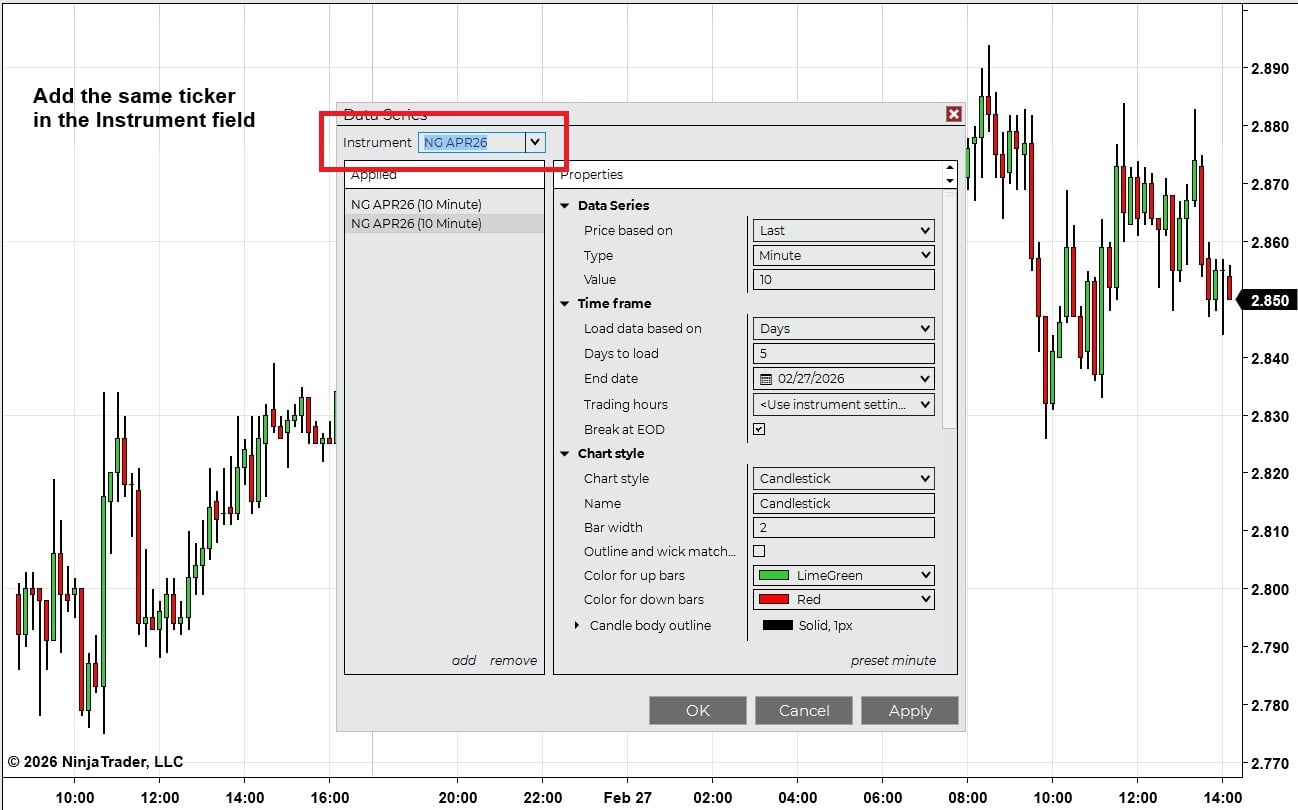 Figure 3: Enter the same ticker in the Instrument field
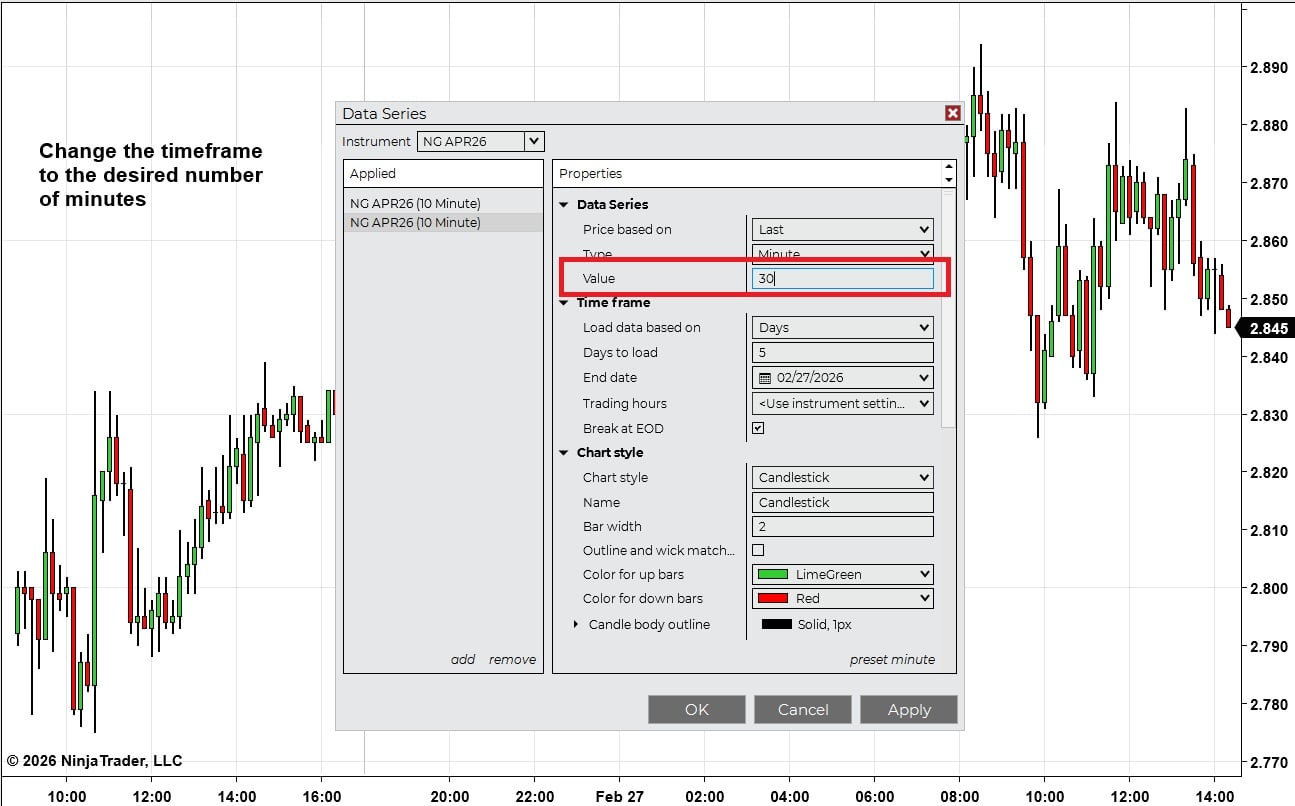 Figure 4: Enter a different number in the Value field
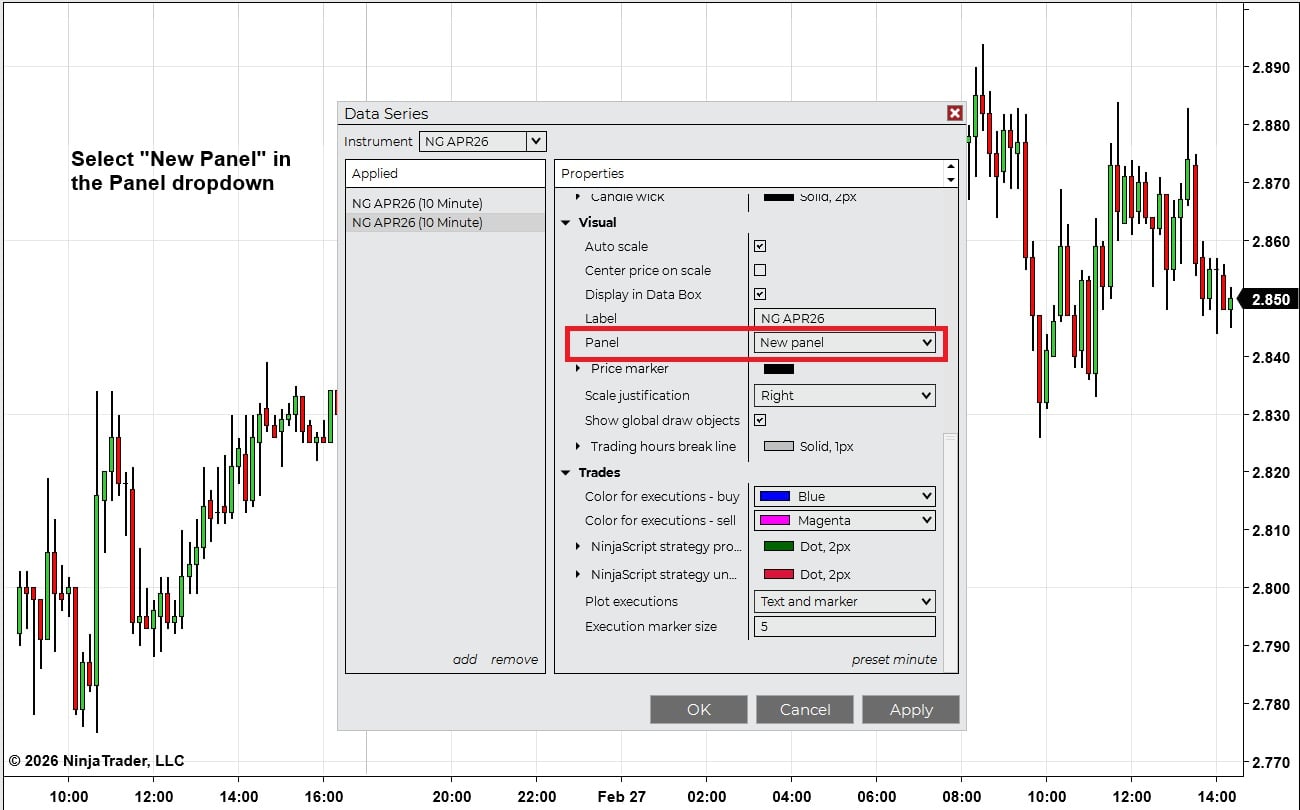 Figure 5: Select New Panel in the Panel field
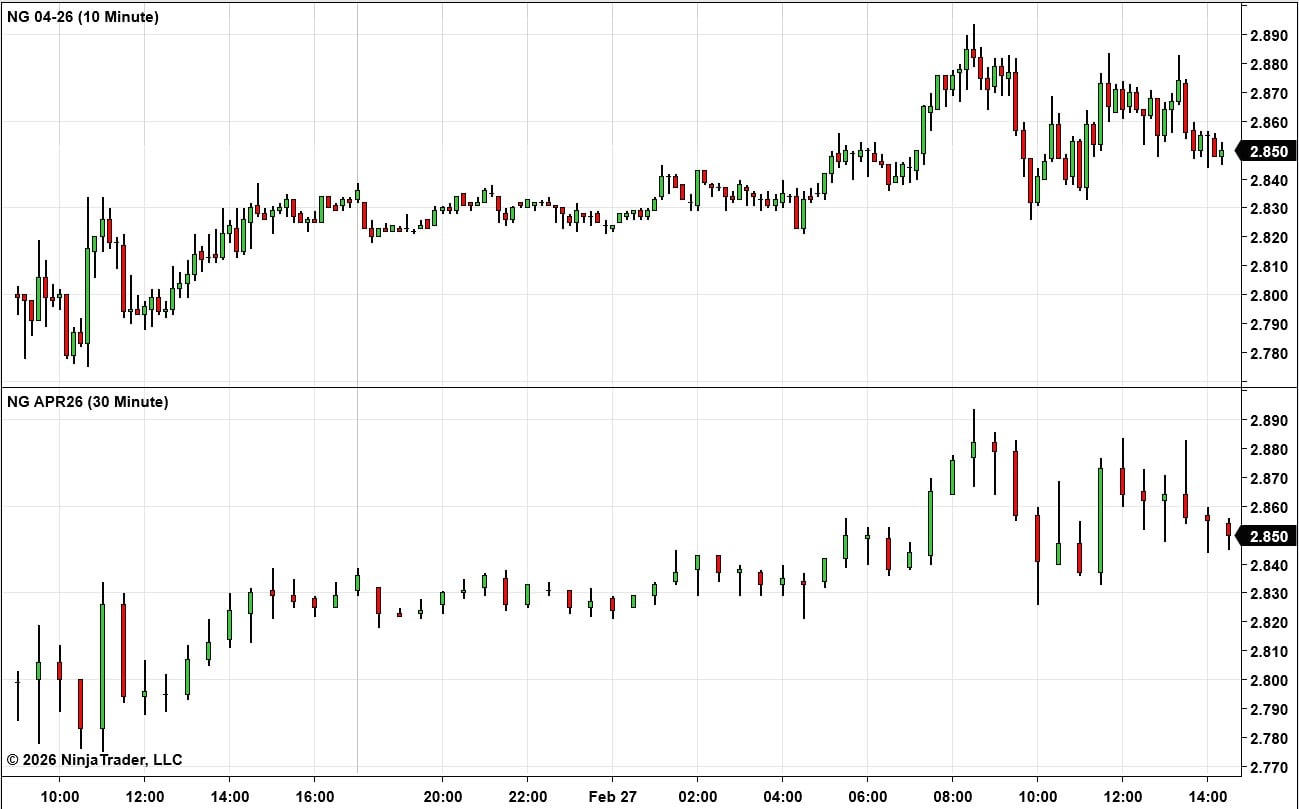 Figure 6: Click Apply to display the new chart
Best timeframes for your trading style
There’s no one-size-fits-all answer, but there are “adjustable” options. Here are some quick suggestions:
- Scalping → 1-minute, 3-minute, or tick charts
- Day trading → 5-minute to 15-minute
- Swing trading → 1-hour to daily
- Longer-term setups → Daily, weekly, or even range/volume charts
The goal is to find a combo that matches how you trade and how much detail you want to see.
New to chart reading? No problem! Explore our educational resources.
Easy-to-miss mistakes (and how to avoid them)
Here are a few things that can trip you up when adjusting chart timeframes:
- Mixing time zones: Make sure all charts match your preferred market hours.
- Having too many timeframes on one chart: More isn’t always better; it can slow things down.
- Forgetting to save layouts: NinjaTrader won’t remember your changes unless you save the workspace.
In short: keep it clean. Set up what you need, save it, and you're good to go every time you log in.
Make your chart timeframes work for you in NinjaTrader
Now that you know how to apply and customize timeframes in NinjaTrader, you’ve got everything you need to create a workspace that supports your trading style, whether that’s fast, methodical, or somewhere in between.
🔗 Need a place to start?
Timeframes can make or break how you see the market. Use them well, and they can give you the trading edge you’re looking for.

Trade Futures with NinjaTrader
Haven't signed up for your free NinjaTrader account yet? Get started today with a 14-day trial of live simulated futures trading.