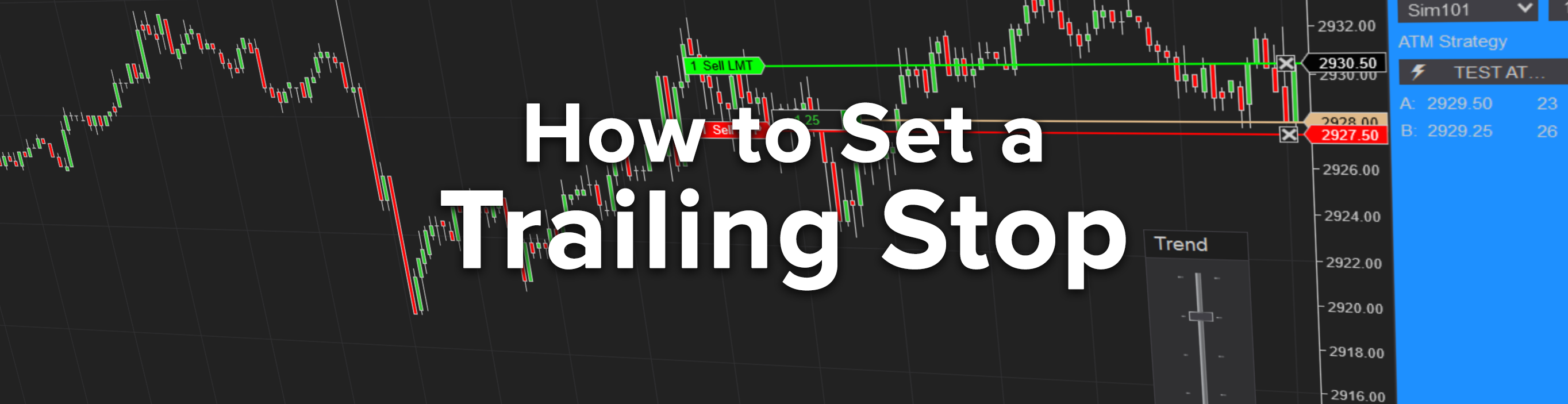
With NinjaTrader’s automated trade management (ATM) strategies, you can create custom trailing stop loss orders specific to your preferences.
Why Use a Trailing Stop?
A trailing stop is a dynamic stop-loss order that “trails” behind the price as it moves in your favor. As the price moves further in your favor, the trailing stop automatically moves with it, limiting losses or locking in profit. Trailing stops can be used for both long and short trades, but they can only move in one direction. For example, once a trailing stop has moved up, it cannot move back down.
Build a Custom Trailing Stop
Use NinjaTrader’s ATM Strategy feature to create a custom trailing stop that suits your particular preferences. For example, start with a loose stop and have it cinch tighter as each profit benchmark is hit. Additionally, adjust the frequency of the trailing stop and can scale out slowly or exit your entire position at once. The possibilities are endless!
From an order entry interface such as Chart Trader or the SuperDOM, you can build ATM strategies with trailing stops a few simple steps using the Stop strategy settings:
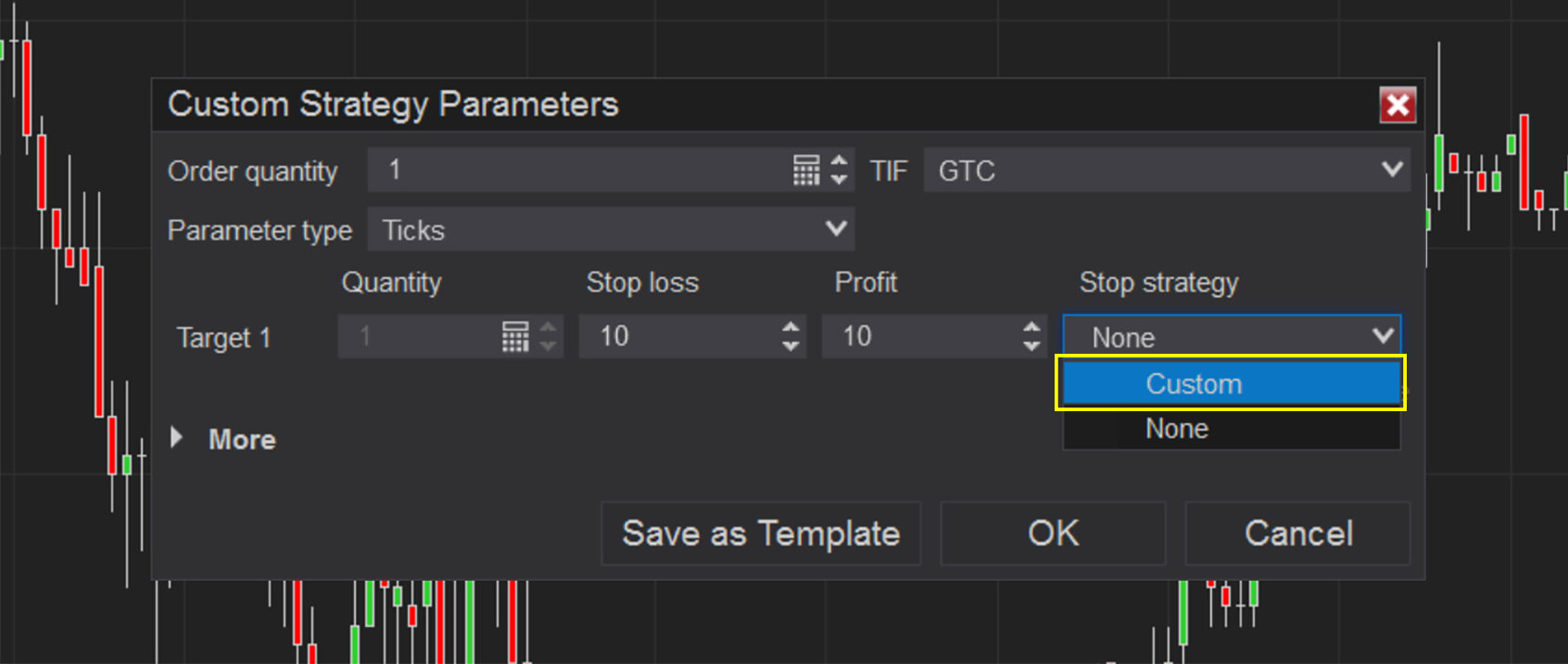
- Use the ATM drop-down menu to select Custom. The Custom Strategy Parameters menu will appear.
- Enter your initial Stop Loss and Profit values, then use the Stop strategy drop-down menu to select Custom. For this example, we have entered 10 ticks for the profit target and 10 ticks for the stop-loss.
 3. Next click 1 Step to create a one-step trailing stop. Three additional fields will appear:
- Profit Trigger: The number of ticks in profit to activate the trailing stop
- Stop-Loss: The value in ticks behind the current price to trail the stop-loss order behind
- Frequency: The value in ticks that defines how frequently the stop-loss order will trail
We entered 3 for the profit trigger so that after 3 ticks in our favor, the stop-loss order starts adjusting. We entered 7 for the stop loss value so that the stop-loss is adjusted from 10 ticks behind the entry price to 7 ticks behind the current price. We set the frequency to 2 so that the stop-loss trails with every 2 ticks of profit.
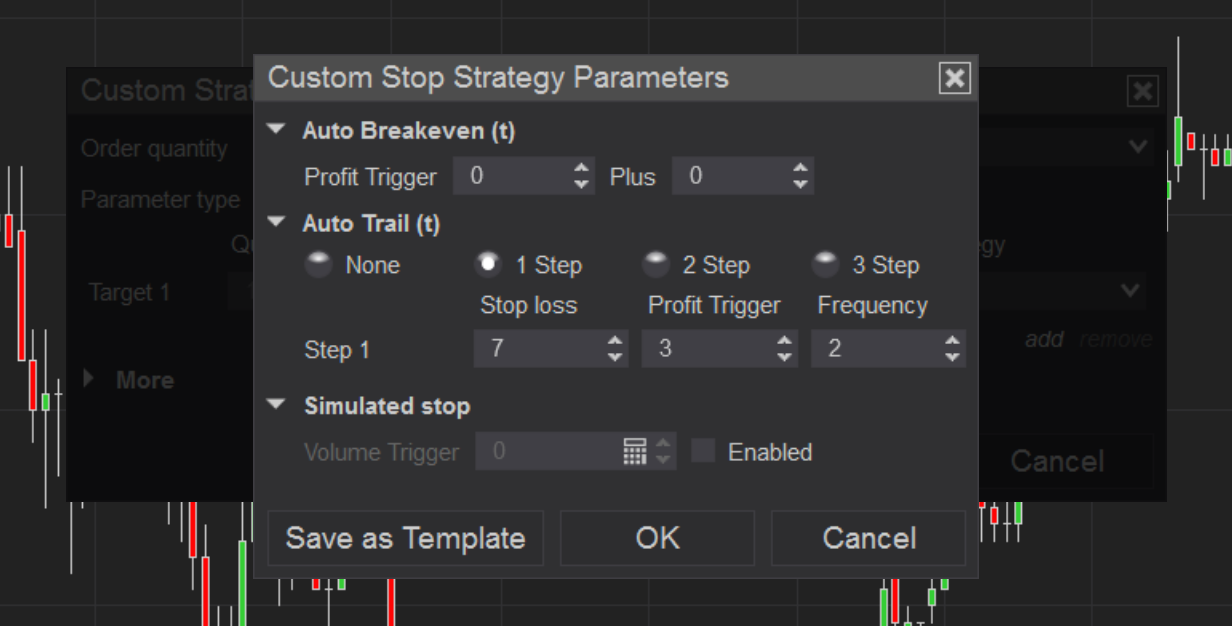 4. Enter the desired values into these fields and click OK.
5. Click Save as Template and then type a name to save your ATM strategy template, which will include your Auto Trail parameters.
6. Click Save and then click OK.
Test Your Trailing Stop with the Simulated Data Feed
Once you’ve created an ATM Strategy template, you can test your strategy using the Simulated Data Feed. Please note: The simulated data feed provides internally generated market data and is not reflective of the actual market.
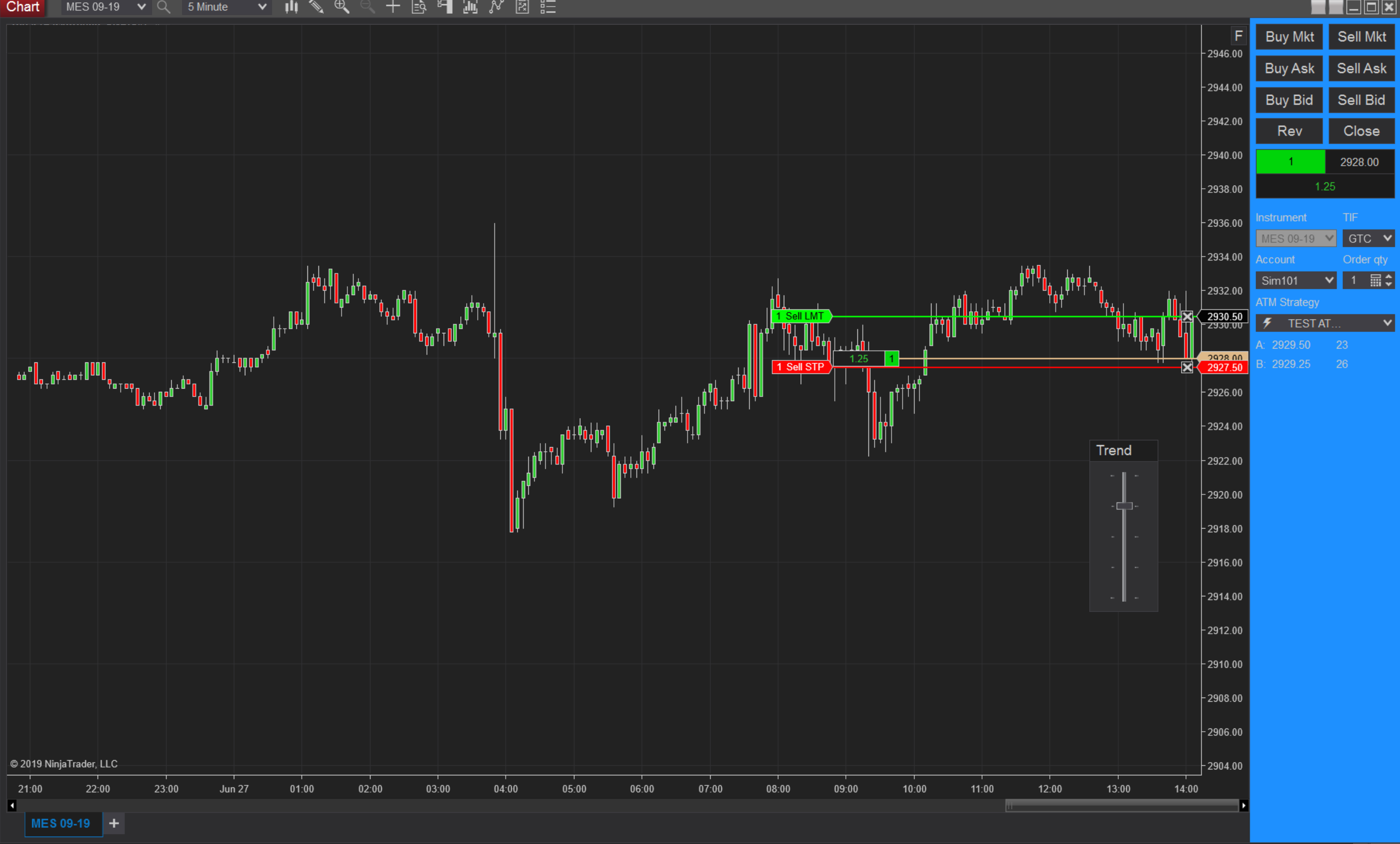
When connected to the Simulated Data Feed, a trend slider will appear that allows you to control the price either up or down. This is extremely helpful for testing ATM strategies. To connect to the Simulated Data Feed, first disconnect from any other open connections and then click Connections>Simulated Data Feed.
Use the trend slider to control the direction of the market as you test your ATM strategy on both the long and short side of the market to ensure it's performing as expected.
 The award-winning NinjaTrader platform supports both advanced and basic order types and is always free to use for advanced charting, strategy backtesting, and trade simulation. Get started building custom ATM strategies on our powerful, flexible trading platform today!