Key levels are prices a market has reacted to before, such as the previous day’s high and low, and many traders mark them on a chart so they stay in view. In NinjaTrader’s desktop platform, you can mark them with indicators that plot levels for you or with drawing tools such as the Horizontal Line and Vertical Line, which also cover sessions that have already ended, such as the overnight range.
This guide walks through each method, from previous-day and session highs and lows to the lines and settings that keep them on your charts. The examples use E-mini S&P 500 (ES) and E-mini Nasdaq-100 (NQ) charts.
Any trading symbols, company names, logos, or trademarks displayed are used for illustrative purposes only and remain the property of their respective owners. Their use does not imply affiliation with, endorsement by, or sponsorship of NinjaTrader, nor do any trading symbols displayed constitute investment advice or recommendations.
What are key levels on a chart?
Key levels are prices where a market has reversed, stalled, or traded heavily, such as the previous day’s high and low, the session high and low, and the opening range. Traders often mark key levels on a chart to help plan entries, exits, and stops.
This guide covers these level types:
- Previous-day high, low, and close: the highest, lowest, and closing prices of the prior trading day.
- Session high and low: the highest and lowest prices reached in a trading session, which is a defined block of trading hours.
- Overnight high and low: the highest and lowest prices set in the overnight session, before the regular session opens.
- Opening range: the high and low of the first stretch of the session, commonly the first 30 minutes.
- Pivot points: reference levels calculated from the prior day’s high, low, and close.
Traders often read levels as zones rather than exact prices, since price can react a few ticks short of a line or trade through it briefly. Which levels deserve attention is a separate question, covered in our guide to identifying support and resistance levels. This page stays on the mechanics of marking them.
The previous day’s levels come first.
How do you mark previous-day highs and lows on a chart?
Two routes put the previous day’s high and low on a chart: one is an indicator that plots them for you, and the other is a drawing tool you place yourself. Pivot points are a related option that builds on the same prices.
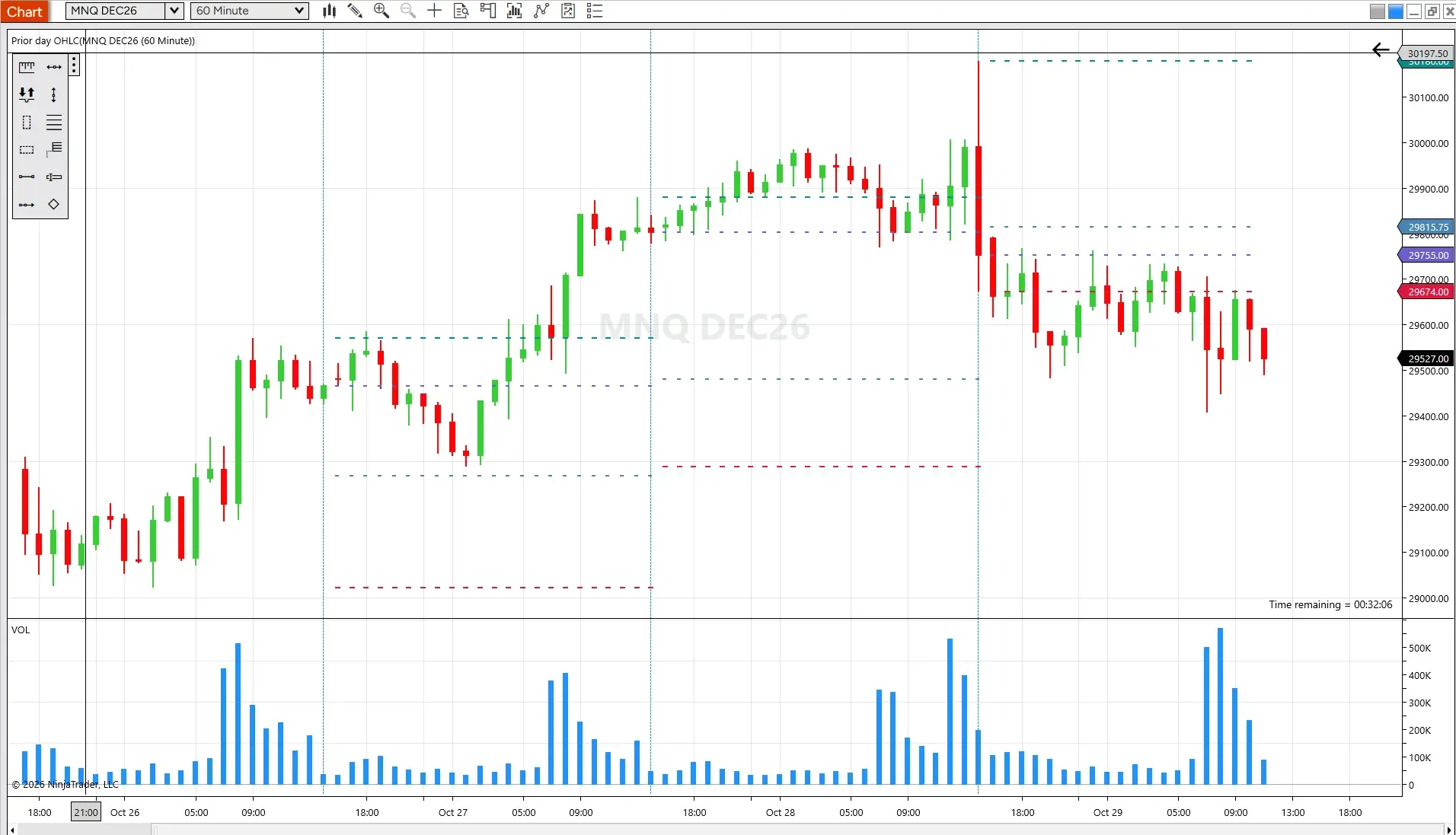
Plot them with the Prior Day OHLC indicator
The Prior Day OHLC indicator plots the prior session’s open, high, low, and close as four horizontal lines over the chart. It’s built for intraday series, so it applies to intraday charts, and its settings let you display some or all of the four lines.
You can add the Prior Day OHLC indicator to your chart in four steps:
- Open an intraday chart of the contract you want to mark, such as NQ.
- Open the Indicators window by right-clicking the chart background and choosing Indicators, clicking the Indicators icon in the chart toolbar, or pressing Ctrl + I.
- Find Prior Day OHLC in the Available list and move it into the Configured list; double-clicking it does the same.
- Choose which of the four lines to display in the parameters on the right side of the window.
The support center covers adding an indicator in detail and lists every setting in its full indicator reference.
Draw them with a Horizontal Line
A Horizontal Line marks one price you choose, on any chart. For a finished day, you read the high and low off the chart and place a line at each. Because you place the lines yourself, each one stays at its price until you move or remove it, and the next day’s levels take a new pair. Each drawn line has its own properties, such as color, dash style, and width. The drawing steps are in the section on horizontal and vertical lines below.
Plot pivot points with the Pivots indicator
Pivot points are reference levels calculated from the prior day’s high, low, and close. The Pivots indicator plots a pivot point with three resistance levels (R1 to R3) and three support levels (S1 to S3), and it also offers weekly and monthly ranges. The guide to pivot points covers the indicator in more detail.
The Prior Day OHLC indicator plots the previous day’s levels for you, a Horizontal Line marks them by hand, and the Pivots indicator adds levels calculated from them. Session highs and lows come next, including the current session as it develops and sessions that have already ended.
How do you mark session highs and lows?
A session is a defined block of trading hours, and its high and low are the highest and lowest prices reached during that block. The Current Day OHL indicator follows the current session as it develops, and Horizontal Lines mark a session that has finished.
Follow the current session with Current Day OHL
The Current Day OHL indicator plots the current session’s open, high, and low as three horizontal lines, and it updates in real time as the session develops. Like Prior Day OHLC, it’s built for intraday series. You add it the same way as Prior Day OHLC: open the Indicators window, find Current Day OHL in the Available list, and move it into the Configured list.
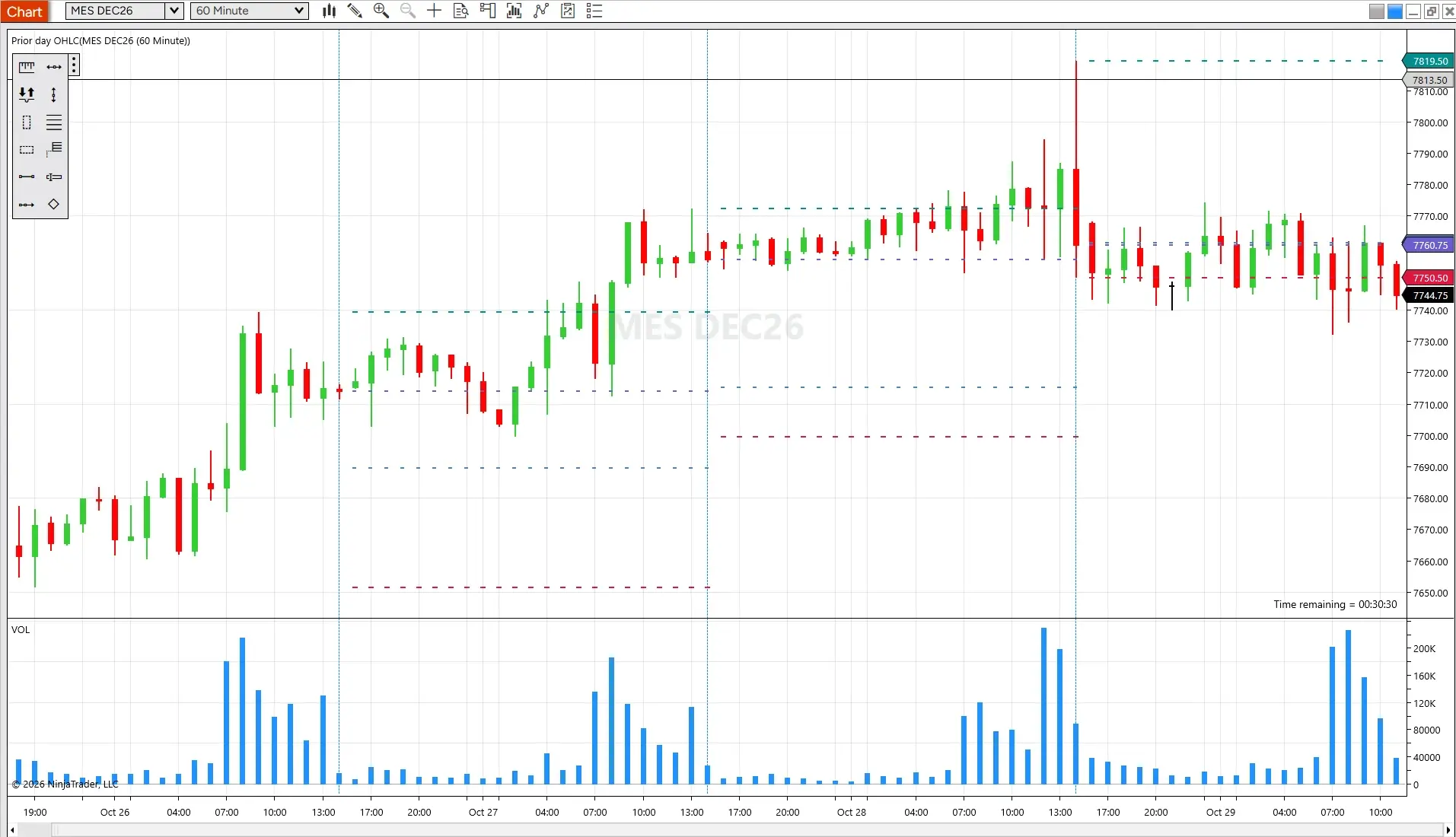
Mark a finished session, such as the overnight range
The overnight session sets an overnight high and low, often shortened to ONH and ONL, and traders often mark that range on the chart as a reference. Once a session has ended, its high and low stop changing, so Horizontal Lines can mark them. Read the highest and lowest prices of the session off the chart and place a line at each, using the steps in the section on horizontal and vertical lines below.
For this to work, the overnight window has to appear on the chart. A chart built on regular trading hours (RTH) leaves the overnight window out, while a chart built on extended trading hours (ETH) takes it in. The guide to regular and extended trading hours covers how the two differ, and a chart’s trading hours template holds its session definitions, with any data outside those sessions left off the chart.
Opening range
The opening range is the high and low of the first stretch of the session, commonly the first 30 minutes. Two Horizontal Lines, one at each price, mark it, and the opening range breakout guide shows it inside a full strategy.
What it meansIndicators cover the levels that come from the prior day or the current session, and Horizontal Lines cover everything else, including sessions that have already ended.
Here’s how each level type is marked:
| Level | How to mark it | Plots on its own? |
|---|---|---|
| Previous-day high, low, and close | Prior Day OHLC indicator on an intraday chart, or Horizontal Lines | Indicator: yes. Lines: no. |
| Current session high and low | Current Day OHL indicator | Yes, in real time |
| Finished-session high and low | Horizontal Lines | No |
| Overnight high and low | Horizontal Lines | No |
| Opening range | Two Horizontal Lines | No |
| Pivot points | Pivots indicator | Yes |
Horizontal Lines cover several of these levels, so the next section looks at them directly, along with their vertical counterpart.
How do you add horizontal and vertical lines to a chart?
NinjaTrader’s Horizontal Line and Vertical Line drawing tools (default hot keys F6 and F7) let traders mark a price level or a point in time directly on a chart. A Horizontal Line marks a price, and a Vertical Line marks a time, such as the session open or a news release.
You can add the Horizontal Line and Vertical Line drawing tools to your chart in four steps:
- Right-click the chart and choose Drawing Tools, or click the Drawing Tools button in the chart toolbar.
- Select Horizontal Line to mark a price or Vertical Line to mark a time. The default hot keys are F6 and F7.
- Click the chart at the price or time you want to mark.
- To place several lines in a row, turn on Stay in Draw Mode in the Drawing Tools menu, and the tool stays selected after each line.
Right-clicking or pressing Esc cancels a tool before you place a line. The full drawing tools reference covers every drawing tool and property.
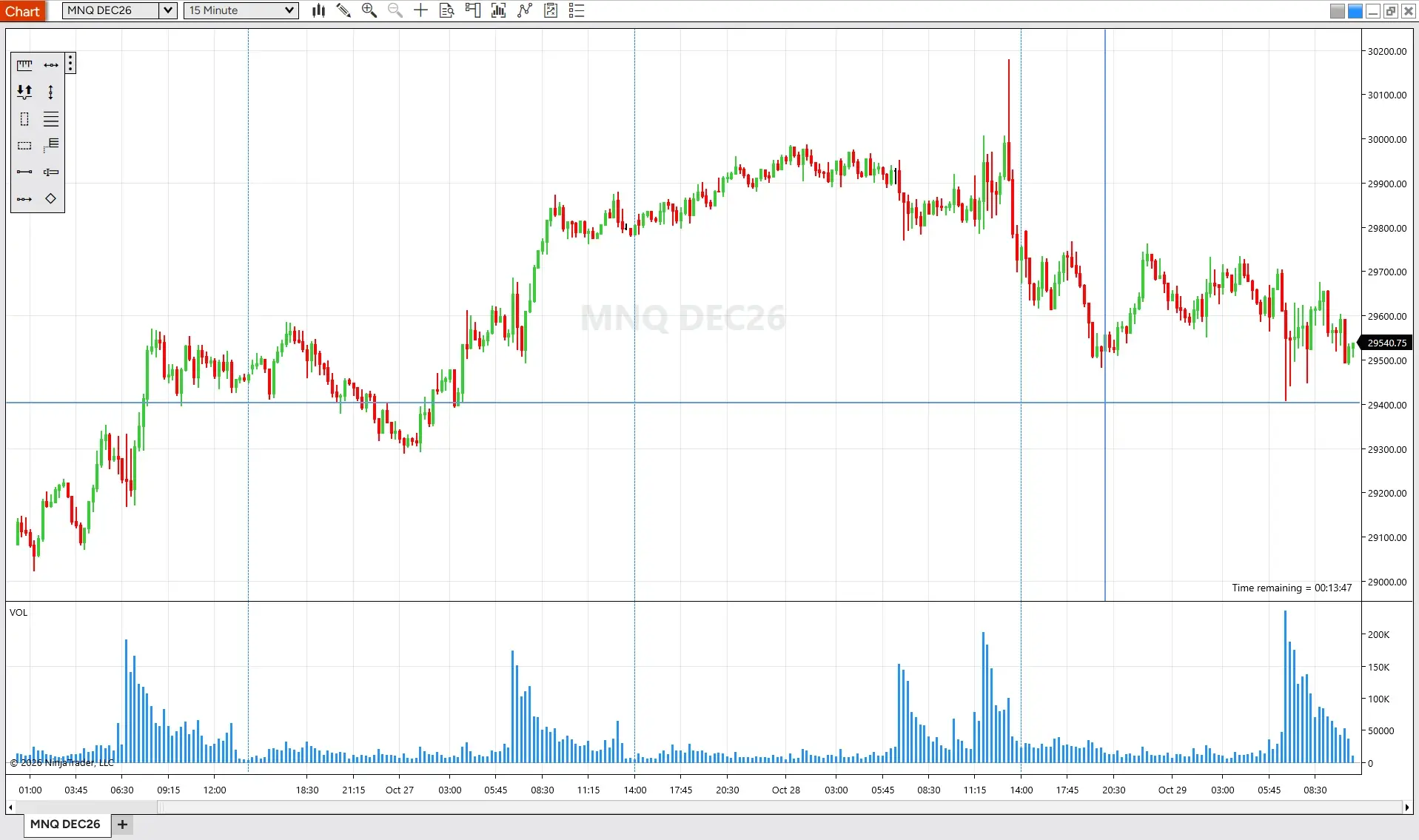
Settings that apply as you draw
Stay in Draw Mode keeps the selected tool active, so you can place a series of lines without reselecting it each time. Snap Mode is a separate setting with five options (Disabled, Bar, Tick, Bar and Tick, Bar and Object), and it controls whether a line lands exactly where you click or snaps to bar intervals, the nearest tick, or the open, high, low, and close values of the data series and indicators.
The Horizontal Line marks a price, the Vertical Line marks a time, and Stay in Draw Mode and Snap Mode shape how you place each line. Next is where those drawings appear: on a single chart or on every chart of the same instrument.
How do you show the same levels on every chart?
A drawing object in NinjaTrader’s desktop platform can be attached to a single chart or to every chart of the same instrument, so a level marked once can show up wherever that instrument is charted.
Local and global drawing objects
A drawing object that applies to one chart is local, and one that applies to every chart of the same instrument is global. To make an object global, open its properties, find the Attach To menu, and select the instrument name. The object then appears on every chart of that instrument, including charts opened later, and global objects are kept even when no chart of the instrument is open.
A global object displays only on charts whose scale justification matches the plot it’s attached to, and removing a global object removes it from all charts. The drawing tools reference has the full details, and the guide to top-down analysis looks at how traders carry levels across timeframes.
Drawing object templates
A drawing object’s auto scale, color, dash style, and width can be saved as a template, and the template can then be applied to new objects of the same type. Anything in the Data section stays out of the template. Save as default in the save window makes the saved settings that tool’s default.
Locking a line in place
The Locked property fixes a drawing object in place so it can’t be dragged, and it defaults to false. Remove All Drawing Objects leaves locked objects on the chart.
What it meansAttach To decides where a line shows up, a template carries its formatting, and Locked keeps it where you placed it.
What does a set of key levels look like on an NQ chart?
Futures traders often mark the previous day’s high and low and the overnight high and low on ES and NQ charts before the session opens, then watch how price reacts when it reaches them.
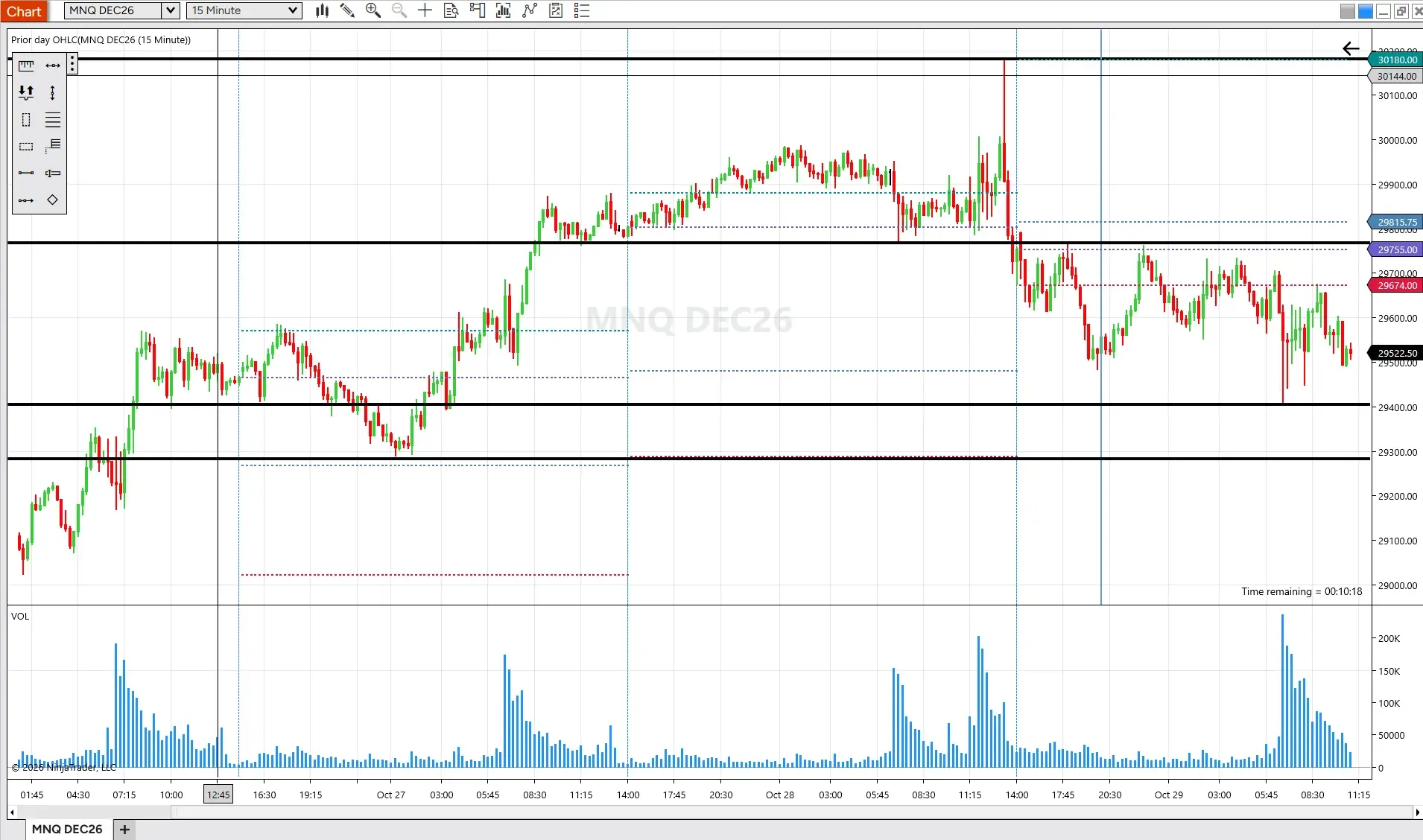
Take an NQ chart with seven levels marked. The previous day’s high, low, and close come from the Prior Day OHLC indicator, and the overnight high and low and the opening range high and low are Horizontal Lines placed by hand. The prices below are illustrative, not market data.
| Level | Illustrative price | How it was marked |
|---|---|---|
| Previous-day high | 25,480.00 | Prior Day OHLC indicator |
| Overnight high | 25,455.00 | Horizontal Line |
| Opening range high | 25,442.00 | Horizontal Line |
| Previous-day close | 25,395.00 | Prior Day OHLC indicator |
| Opening range low | 25,368.00 | Horizontal Line |
| Overnight low | 25,310.00 | Horizontal Line |
| Previous-day low | 25,230.00 | Prior Day OHLC indicator |
Laid out from top to bottom, the previous day’s range is the widest band (25,230.00 to 25,480.00). The overnight range (25,310.00 to 25,455.00) sits inside it, and the opening range (25,368.00 to 25,442.00) sits inside the overnight range. The previous day’s close (25,395.00) falls within the opening range. As the session develops, the Current Day OHL indicator can add the session’s own high and low to the same chart.
To see how traders often put levels like these to work, check out our guides to building a premarket trading strategy and trading liquidity traps. The built-in tools are one source of levels, and third-party indicators are another.
Can third-party indicators add to the levels on your chart?
Third-party indicators built for NinjaTrader’s desktop platform come from developers outside NinjaTrader, and the indicators and apps available for the platform can extend what a chart can show.
The NinjaTrader Ecosystem Vendors featured are independent of NinjaTrader, LLC and its affiliated companies (“NinjaTrader”). NinjaTrader does not endorse or recommend any particular trading system or strategy.
Because each indicator is built by its own developer, how it defines and plots a level varies from one tool to the next. The built-in indicators covered above are one set of options, and the roundup of indicators for futures day trading looks at more of them.
Start marking key levels in NinjaTrader
The indicators, drawing tools, and drawing-object settings covered here are all part of NinjaTrader’s desktop platform. For more on reading charts, see our Technical Analysis Made Easy course.
Ready to mark levels on your own charts?
Terms apply.
FAQs on marking key levels on a chart
What are the most common key levels futures traders mark?
Futures traders commonly mark the previous day’s high and low, the overnight high and low, and the opening range, along with pivot levels calculated from the prior day’s prices. These levels show up often on contracts such as ES and NQ.
Does the Prior Day OHLC indicator work on a daily chart?
The Prior Day OHLC indicator is designed for intraday series, so it applies to intraday charts rather than a daily chart. A Horizontal Line can mark a level on any chart, including a daily one.
How do you mark the overnight high and low?
Overnight highs and lows are marked with Horizontal Lines, one at the highest price and one at the lowest price of the overnight session. The overnight window has to appear on the chart: a chart built on extended trading hours takes it in, and a chart built on regular trading hours leaves it out.
Can you keep the same levels on every chart?
Yes. A drawing object can be attached to every chart of the same instrument instead of a single chart, which makes it a global object. A global Horizontal Line drawn on one NQ chart then shows on other NQ charts, including charts opened later.